Covers Manual 1 pp. 9–16 Manual 1 pp. 57–58 Manual 2 p. 22.
System Data#
A game made in RPG Maker is two pieces of data: System Data, which holds the settings, the database and every map, and Scenario Data, which holds the events. This chapter covers the small editors that set up the game as a whole: its title screen, its sounds, which parts of the battle system it uses, what its stats are called, its name, its credits and its password. The database editors (magic, items, characters, skills, monsters) are in The database; the maps are in Dungeon Edit and Field Edit; how both halves are saved is in Memory cards and saves.
Edit Data#
EDIT → Edit Data lists every editor on one page: System Data's twelve above, Scenario Data's two below. Both halves have a Game Info.
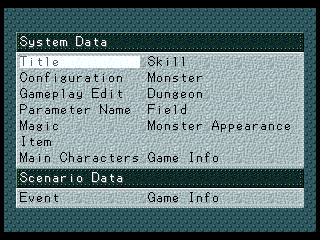
| Edit Data item | Header on screen | What it sets | When a change is kept |
|---|---|---|---|
| Title | Title Edit | the title screen | on leaving, after Update Data |
| Configuration | Configuration | the editors' cursor speed, music and sound; the game's three system sounds | at once |
| Gameplay Edit | GamePlay Edit | five switches that turn parts of the database on and off | at once |
| Parameter Name | Parameter Name | the names of the 22 stats and terms | at once, name by name |
| Game Info | Set System Data | the game's title, its start scenario, the staff, the System Password; Delete Data | at once |
| Game Info (Scenario Data) | Set Scenario Data | the scenario's name and password; Delete Data | at once |
The six editors here differ in when they keep a change. Title Edit works on a copy and asks Update Data / Cancel when you leave. Every other one writes the moment you pick a value or finish a name: there is nothing to cancel, so leaving with ○ keeps everything. Either way, a change is only in memory until you save the System (or the Scenario) on a card (Saving and loading).
Configuration#
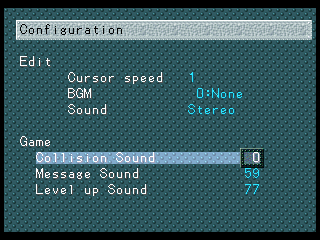
Configuration has two groups. Edit sets up RPG Maker itself while you work; Game sets three sounds the finished game makes.
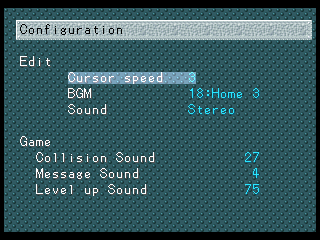 123456
- 1 Cursor speed how fast a held direction repeats in the editors: 1 fastest, 6 slowest; default 3
- 2 BGM the music the editors play; default 18 Home 3, 0 for silence
- 3 Sound Stereo or Mono, applied at once; default Stereo
- 4 Collision Sound the game's bump against a wall or the map's edge; default 27
- 5 Message Sound the game's message, choice and Yes/No sound; default 4
- 6 Level up Sound plays in battle when a member gains a level or learns something; default 75
Choose a row with ×, pick a value, × again to keep it. ○ in a picker leaves the value as it was.
| Row | What it sets | Values | Default |
|---|---|---|---|
| Cursor speed | how fast a held direction repeats in RPG Maker's menus and lists | 1–6, larger is slower | 3 |
| BGM | the music of EDIT: the EDIT menu and every editor | 0–35, 0 = none | 18 (Home 3) |
| Sound | Mono or Stereo, applied at once | Mono, Stereo | Stereo |
| Collision Sound | the bump when the party walks into something it can't pass | 0–78, 0 = none | 27 |
| Message Sound | the sound of messages, choices and Yes / No windows | 0–78 | 4 |
| Level up Sound | the sound of the battle message when someone gains a level or learns something | 0–78 | 75 |
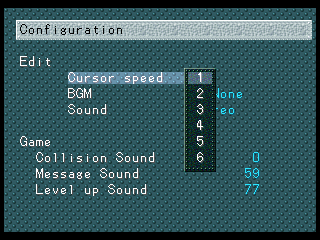
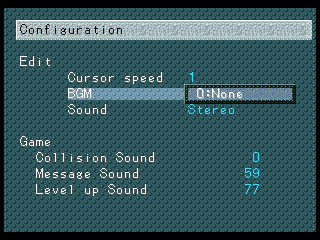
Cursor speed is the wait between repeats when you hold a direction. At 3 a held ↓ first repeats about half a second after the press, then moves a row every seventh frame, about eight rows a second. At 1 it races; at 6 it crawls.
The BGM picker plays the song under the cursor a moment after you stop on it. The songs are the same 35 a game can use (Music and sound). The default:
The three sound pickers play the sound as they open and again with □. ↑ and ↓ step by one, → and ← by ten, and △ jumps to 78 (or to 0 from 78).
The three defaults:
- Collision Sound 27:
- Message Sound 4:
- Level up Sound 75:
Title Edit#
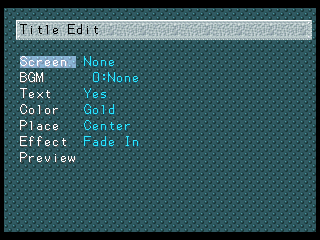
Title Edit sets up the game's title screen: a picture, a song, and the game's name drawn over it in large letters.
 1234567
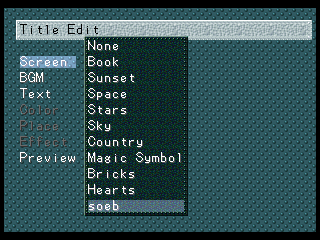
- 1 Screen the picture: None, nine built-in ones, or the title import
- 2 BGM the title's song, 0 for silence
- 3 Text Yes shows the game's Title name over the picture
- 4 Color Gold, Silver or Blue
- 5 Place Center, Top or Bottom
- 6 Effect how the name arrives: one of eight
- 7 Preview plays the title with these settings, saved or not
| Row | What it sets | Choices |
|---|---|---|
| Screen | the picture | None (black), nine pictures on the disc, and the game's imported title picture |
| BGM | the song | 0–35, 0 = none |
| Text | whether the name is drawn | No, Yes |
| Color | the colour of the letters | Gold, Silver, Blue |
| Place | where the name sits | Center, Top, Bottom |
| Effect | how the name appears | eight effects, below |
| Preview | shows the title as it is now set |
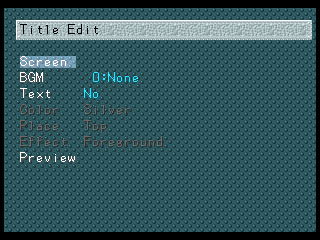
When Text is No, Color, Place and Effect are grey and buzz.
The pictures#
The nine pictures on the disc, each 288 × 208:
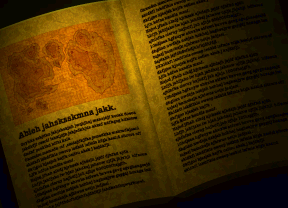




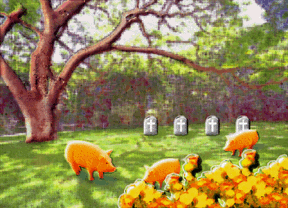



An eleventh entry appears at the end of the Screen list when the System has a title picture imported from Anime Maker: it carries the picture's name (Importing Anime Maker pictures, Anime Maker). It is the most common choice: of 173 System files in the community archive, 56 use an imported picture, 38 None and 16 Book.
The name and its effects#
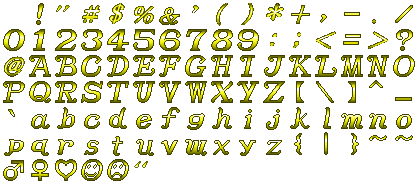
The name drawn is the game's Title name, from Set System Data. It is drawn in 24-pixel letters, centred; a name longer than twelve characters is squeezed to fit.
The Effect is how the name arrives, after the picture has faded in. Each takes about a second.
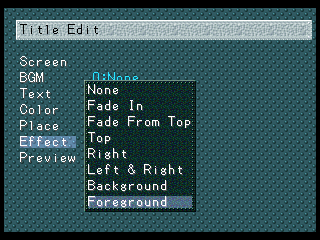
| No. | Effect | How the title name arrives (in one second) |
|---|---|---|
| 0 | None | there at once |
| 1 | Fade In | fades up through the picture |
| 2 | Fade From Top | each letter drawn downwards from its top |
| 3 | Top | the line slides down from above the screen |
| 4 | Right | the line slides in from the right |
| 5 | Left & Right | every letter split into pixel rows that slide in from both sides and meet |
| 6 | Background | grows from a point at the centre, fading in |
| 7 | Foreground | shrinks from four times its size, fading in |
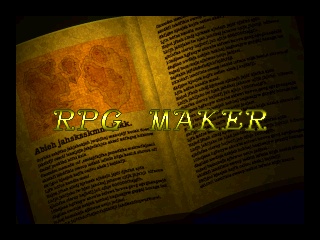
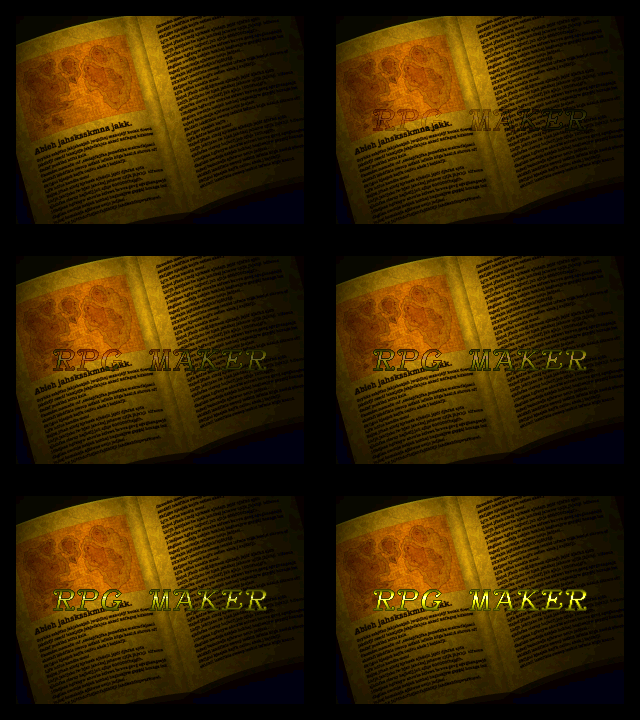
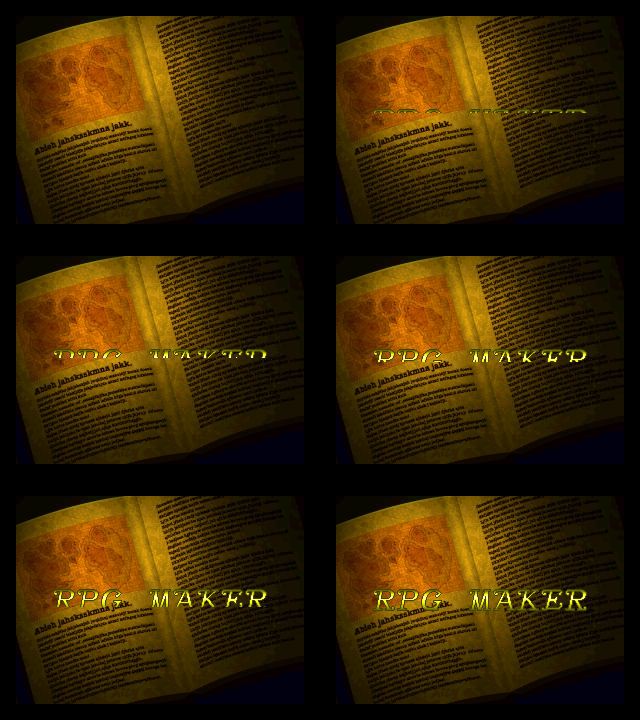
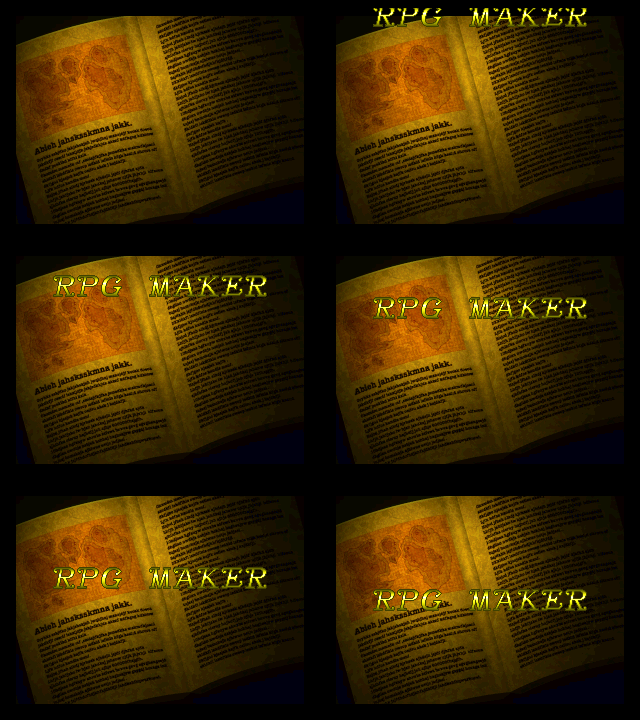
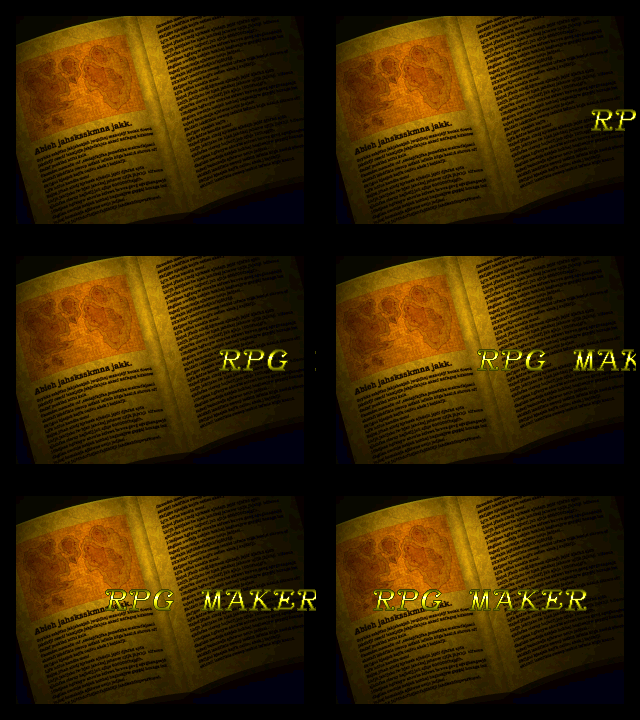
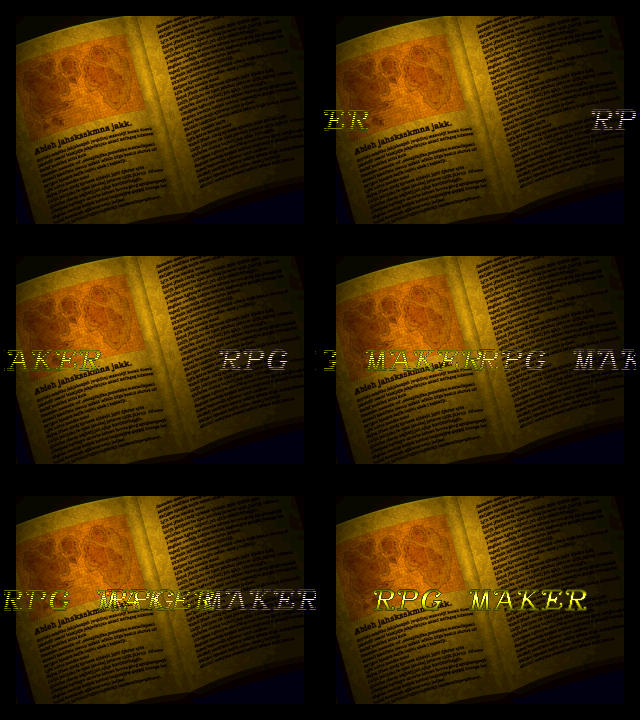
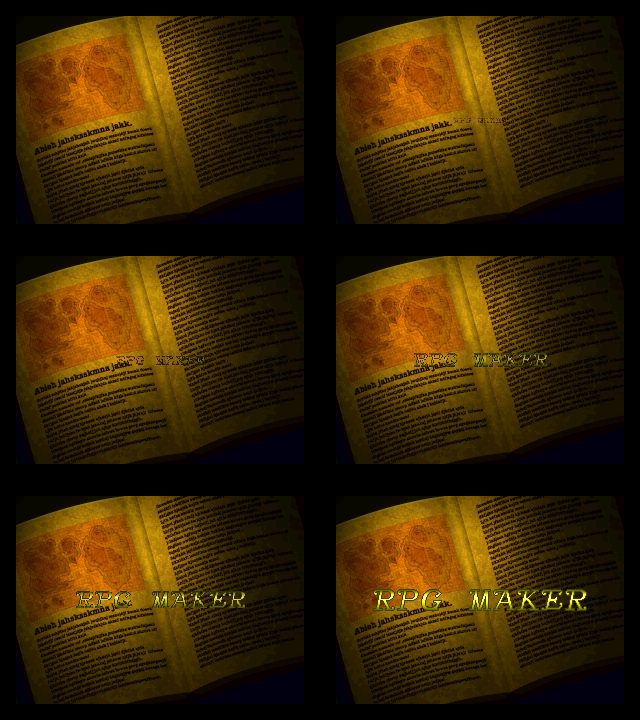
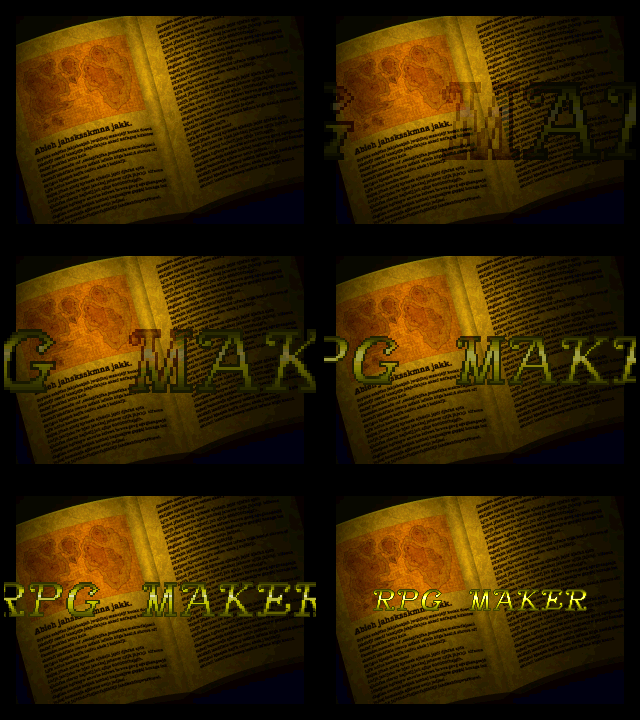
The eight effects over Book, in Gold at Center.
Preview and Update Data#
Preview plays the title exactly as it is now set, before you keep it: the screen fades out, the picture fades in with the title's song, the effect runs, and it waits. × or START ends it; the screen fades back to Title Edit and EDIT's music starts again.
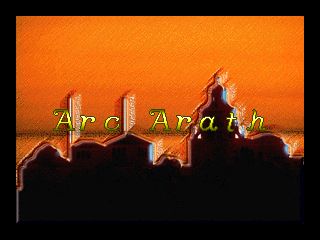
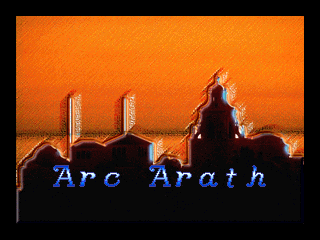
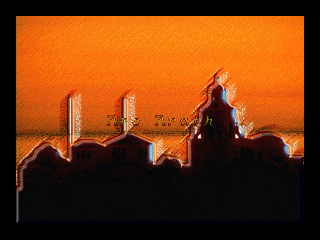
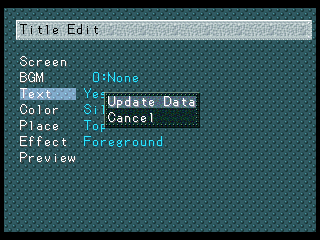
Leaving Title Edit with ○ after any choice asks Update Data / Cancel. Update Data keeps the new title; Cancel throws it away; ○ goes back to the editor. Picking a value counts as a change even when it is the same one, so the question can come after you changed nothing.
The title in play#
A game has no title screen of its own. GAME → Start goes straight to the first map. The title appears only when an event runs Display Title (Events), usually from the first map's Intro Event so that it shows before the map. 127 of 151 games in the community archive do this. Display Title plays the title as the Preview does: 60 frames of fade-out, the picture, a second of fade-in, a second of effect, then it waits for × or START.
Gameplay Edit#
Gameplay Edit (its header says "GamePlay Edit") has five switches that turn whole parts of the battle system on and off. A new System has every one Off, the simplest game: no special attacks, no classes, no skill abilities, no magic defence.
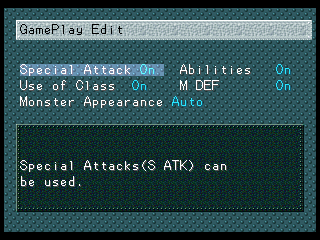 123456
- 1 Special Attack spells that cost HP (S ATK)
- 2 Use of Class spell classes and resistances
- 3 Monster Appearance Auto (per map) or Manual (per area)
- 4 Abilities skill abilities
- 5 M DEF magic defence
- 6 The help box what the switch under the cursor does in its current state
Move with the arrows (→ walks all five in reading order) and press × to flip a switch. The change is kept at once, and the help box below always describes the switch's present setting.
| Switch | Off | On | What it opens in the editors | In play |
|---|---|---|---|---|
| Special Attack | no S ATK | S ATK can be used | Magic Edit's Type (Magic or S ATK); the S ATK parts of Skill Edit and Monster Edit | the S ATK command in the field menu and in battle |
| Use of Class | no classes | classes can be used | Class in Magic, Item and Monster Edit | off: every attack counts as class None; a member's four class defences are added into one, a monster uses its None defence |
| M DEF | no magic defence | magic defence can be used | M DEF in Character, Skill and Monster Edit; Change M DEF in Event Edit | off: everyone's M DEF is 0 |
| Abilities | no skill abilities | skill abilities work | Ability in Skill Edit | the skill's ability applies |
| Monster Appearance | Auto: set by map | Manual: set by areas of parts | what the Monster Appearance editor shows | which encounter areas the game reads |
The switches decide what the database editors show. With a switch Off, its fields there are grey; the values you set while it was On are kept and come back when it is switched On again. One exception:
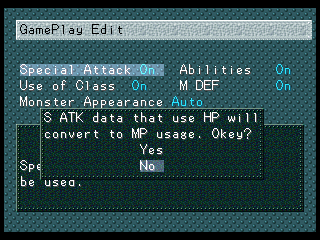
Turning Special Attack off asks "S ATK data that use HP will convert to MP usage. Okey?", opening on No. Yes turns every S ATK in Magic Edit into ordinary Magic, keeping its cost, now paid in MP. Switching Special Attack on again does not turn them back. Turning it on asks nothing.
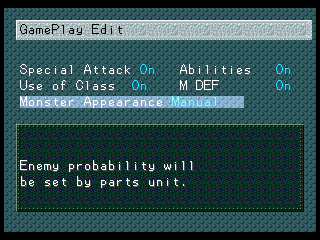
Monster Appearance decides how Monster Appearance sets encounters: Auto gives each map one line-up of monsters, Manual lets you paint areas of a map with their own line-ups. Flipping it converts nothing: both kinds of data are kept, and the game reads whichever the switch now says.
Parameter Name#
Parameter Name renames the game's stats and terms: STR, HP, Gold, Magic and the rest. There are 22, on two screens; Next page and Return move between them.
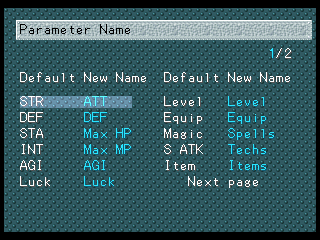
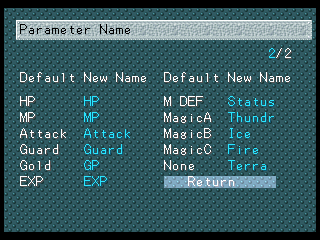
| Screen 1/2, left | Screen 1/2, right | Screen 2/2, left | Screen 2/2, right |
|---|---|---|---|
| STR | Level | HP | M DEF |
| DEF | Equip | MP | MagicA |
| STA | Magic | Attack | MagicB |
| INT | S ATK | Guard | MagicC |
| AGI | Item | Gold | None |
| Luck | Next page | EXP | Return |
Choose a name with × and type the new one on the keyboard (below). A name is at most 6 characters. The grey "Default" beside each one always shows the English original.
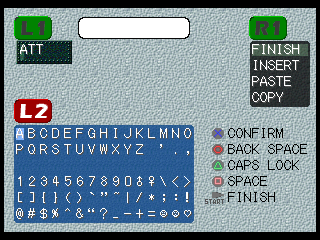
A new name shows at once wherever the term appears. In EDIT: the Magic and Item rows of Edit Data, the titles of Magic Edit and Item Edit, and Character Edit's labels. In play: the field menu and its Status and Equip pages, the battle commands and the party's window. MagicA, MagicB and MagicC are the three classes of attack magic, and None the class of everything else (How battles work); Magic and S ATK name the two kinds of spell. Arc Arath, for example, renames Magic "Spells" and Item "Items", with "ATT", "Max HP", "Max MP" and "Techs" among its other names.
The keyboard#
Names and titles everywhere in RPG Maker are typed on the same keyboard Manual 1 pp. 15–16.
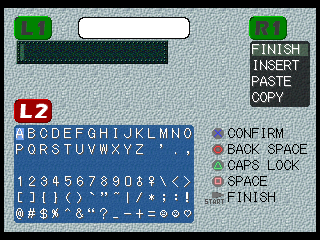
| Button | Does |
|---|---|
| arrows | move over the letters |
| × | types the letter |
| ○ | deletes the character before the text cursor |
| □ | types a space |
| △ | CAPS: capitals and small letters |
| L1 | moves to the text, to place the text cursor |
| R1 | moves to the menu: FINISH, INSERT, PASTE, COPY |
| START | finishes |
It opens with the text cursor at the start of the name, in insert mode. START on an unchanged name closes it; on a changed one it asks Update Data / Cancel, and ○ there goes back to typing. The Title name of a new System ("New Title") and a new Scenario Name ("New Scenario") open empty, ready to type.
Set System Data#
Game Info on the System side opens Set System Data: the game's name, where it starts, its credits and its password.
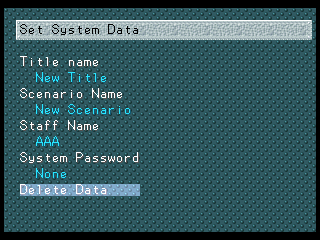
| Row | What it is | Length |
|---|---|---|
| Title name | the game's name: on the title screen, on the cards and in GAME's lists | 18 |
| Scenario Name | the name of the scenario the game starts with | 18 |
| Staff Name | four credits: a title and a name each | 12 and 18 |
| System Password | the System's password, or None | up to 8 buttons |
| Delete Data | starts the System again from nothing |
Everything here is kept the moment you finish it.
The Title name is how the game is known everywhere. A game save looks for its System by this name, so changing it after people have saved cuts their saves off from the game.
The Scenario Name must be spelled exactly as the Set Scenario Data name of the scenario the game opens with. Nothing checks it here; GAME → Start looks for a scenario of that name on the cards and stops with "No Scenario Data found." if there is none (What the game looks for).
Staff Name#
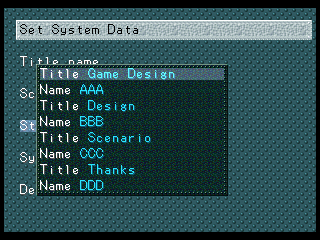
Staff Name opens a page of four Title / Name pairs, set by default to Game Design / AAA, Design / BBB, Scenario / CCC and Thanks / DDD. The first Name is the author: it is the only one Set System Data shows, and it is written on every card save of the game as its author (The slot pages). All four pairs are printed in the ending's credits (Events).
Passwords#
System Password opens a warning, then the password page. Press × or ○ to close the warning.
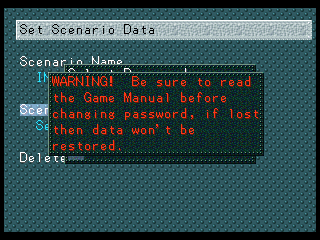
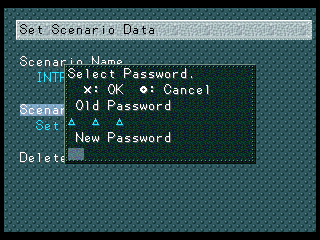
Old Password shows the one stored now, in full; New Password starts empty. Press up to eight of these twelve buttons: △ □ ↑ ↓ ← → START SELECT L1 L2 R1 R2. ○ steps back, × stores what is entered. A ninth press replaces the eighth.
- × with nothing entered removes the password: the row then says None.
- ○ on an empty New Password leaves without changing anything.
- ○ steps back one entry late: the first ○ after typing only moves the cursor, the second deletes.
- Nothing asks for the old password first: anyone who can open the System in EDIT can change it.
A password is asked for only when the file is loaded in EDIT (MEMORY CARD → Load). GAME → Start and Continue never ask it, so a password protects your game from being edited, not from being played (Passwords).
Delete Data#
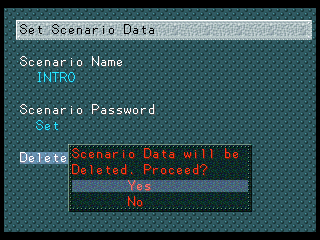
Delete Data asks "System Data will be Deleted. Proceed?", opening on No. Yes returns the whole System to a new one: every database entry, every map, every setting on this page, and the imported Anime Maker pictures are all gone. EDIT's music and cursor speed go back to their defaults at once. The Scenario is not touched, and nothing asks for the password.
Set Scenario Data#
Game Info on the Scenario side opens Set Scenario Data, with three rows.
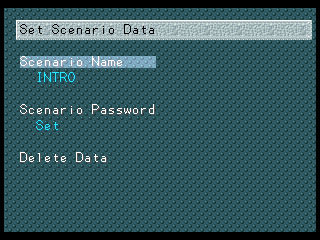
- Scenario Name, 18 characters: what the scenario is called. This is the name Set System Data's Scenario Name and the Next Scenario event command look for (Games on several cards). Give every scenario of a game its own name.
- Scenario Password: as the System Password, on the same page. It guards loading this scenario in EDIT.
- Delete Data: "Scenario Data will be Deleted. Proceed?", on No. Yes empties the scenario of every event and sets its start point to the top-left corner of dungeon 1. The System is not touched.
Changes here are kept at once and count as unsaved Scenario data.
A new System#
What a new System, or one after Delete Data, starts with:
| Editor | A new System's settings |
|---|---|
| Title Edit | Screen None, BGM 0, Text Yes, Gold, Center, Fade In |
| Configuration | Cursor speed 3, BGM 18 Home 3, Stereo; Collision 27, Message 4, Level up 75 |
| Gameplay Edit | every switch Off; Monster Appearance Auto |
| Parameter Name | the 22 names in the table above |
| Set System Data | Title name "New Title", Scenario Name "New Scenario", staff Game Design / AAA, Design / BBB, Scenario / CCC, Thanks / DDD, no password |
| Set Scenario Data | Scenario Name "New Scenario", no password, the start point at the top-left corner of dungeon 1 |
What counts as unsaved#
RPG Maker keeps track of whether the System and the Scenario have changed since they were last saved or loaded, and asks before you leave EDIT or load over them (Unsaved changes). From these editors:
| Counts as a change | Doesn't |
|---|---|
| Update Data in Title Edit | Preview |
| any visit to Configuration or Gameplay Edit | a rename in Parameter Name |
| a stored name, staff credit or password in Set System Data | leaving Set System Data without storing |
| Delete Data | |
| a stored name or password in Set Scenario Data (the Scenario) |
How the System and Scenario are laid out in memory and on the card is in How it works.