Covers Manual 1 pp. 43–47.
Dungeon Edit#
Every place the party walks through on foot is a dungeon in RPG Maker's terms: a town, a castle, a cave, a forest, the inside of a single house. Dungeon Edit makes their maps. You either take one of 247 finished Sample maps as it stands, or build a Custom map of your own, cell by cell, from the parts of one of two tile sets, In (indoors) and Out (outdoors). The events that bring a map to life are added afterwards in Event Edit, the random battles in Monster Appearance.
Maps and map sets#
A map is a grid of cells, each 24 pixels square. What can stand in the cells comes from a map set: a tile set with its graphics, palettes and the attributes that say which tiles block. The disc holds 249 of them: set 0 "In" and set 1 "Out", which Custom maps are built from, and 247 sets that each belong to one Sample map. The Sample maps come in 20 categories Manual 1 p. 44:
| Category | Sample maps | Map sets |
|---|---|---|
| Dungeon 1 | 42 | 2–43 |
| Forest | 29 | 44–72 |
| Desert | 6 | 73–78 |
| Sci-fi | 4 | 79–82 |
| Magic | 4 | 83–86 |
| Pyramid | 5 | 87–91 |
| Dungeon 2 | 50 | 92–141 |
| Bridge | 4 | 142–145 |
| Church | 5 | 146–150 |
| Lab | 8 | 151–158 |
| Castle | 10 | 159–168 |
| Tower 1 | 23 | 169–191 |
| Tower 2 | 6 | 192–197 |
| Arena | 3 | 198–200 |
| Igloo | 5 | 201–205 |
| Shop | 4 | 206–209 |
| Mansion | 4 | 210–213 |
| Ruins | 8 | 214–221 |
| Tomb | 8 | 222–229 |
| Other | 19 | 230–248 (Cape 1 to Falls) |
A Sample map is a finished room or area with its own tiles, drawn by the studio. You can't change a single cell of it: you can rename it, give it music and put a wallpaper behind it, and Event Edit and Monster Appearance treat it like any other map. In return it costs only 21 bytes of memory however big it is. Their sizes:
| Size (cells) | Sample maps |
|---|---|
| 27 × 40 | 78 |
| 27 × 27 | 58 |
| 40 × 40 | 48 |
| 53 × 53 | 18 |
| 40 × 27 | 17 |
| 53 × 40 | 9 |
| 40 × 53 | 6 |
| 65 × 40 | 4 |
| 27 × 53 | 3 |
| 65 × 65 | 2 |
| 53 × 27 | 2 |
| 40 × 65 | 1 |
| 53 × 65 | 1 |
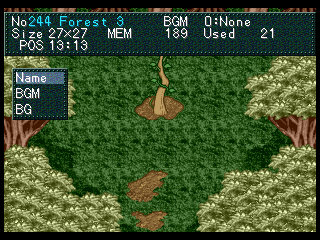
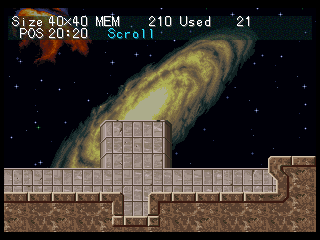
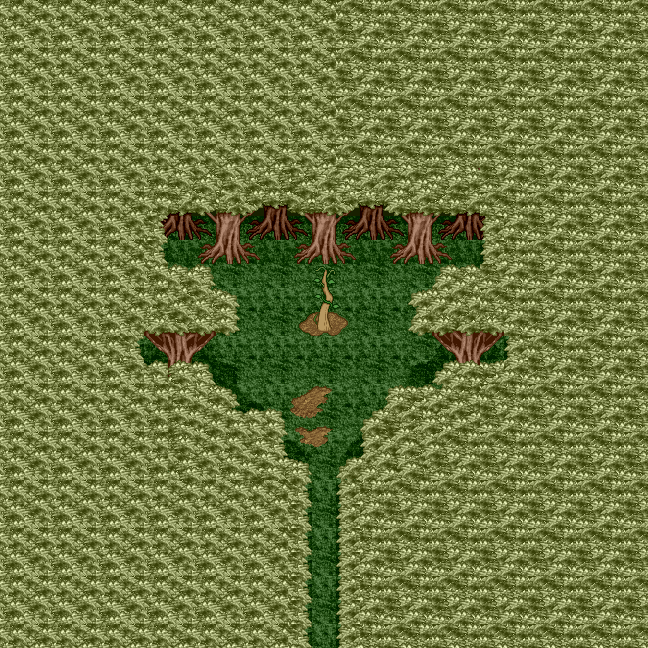
Every map set, every Sample map drawn whole and every wallpaper are in Map sets and tiles.
The top menu and the dungeon list#
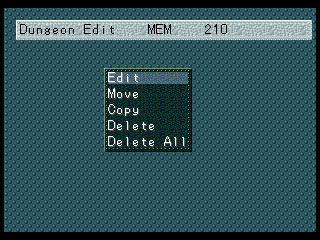
The top menu has Edit, Move, Copy, Delete and Delete All, with the free memory (MEM) beside them. While no dungeon exists, everything but Edit is grey. The cursor always reopens on Edit.
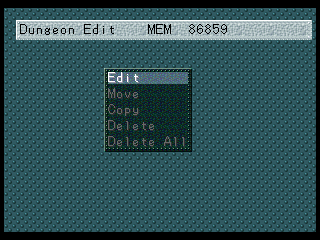
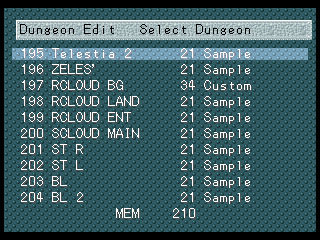
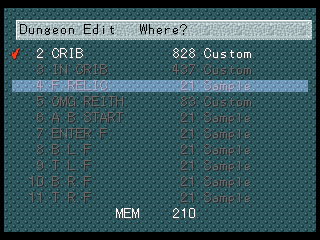
All five commands use the same list of the numbers 1 to 990. Each row shows the number, the name (up to 12 characters), the memory the dungeon uses and Custom or Sample. A Sample always shows 21; an empty Custom map shows 34. Edit opens the list on the last dungeon you stored.
| Button | In the dungeon list |
|---|---|
| ↑ ↓ | one row; the list scrolls at the top and bottom |
| ← → | 10 numbers back or on |
| □ + ↑ ↓ | 50 numbers |
| □ + ← → | 100 numbers |
| × | open the dungeon (or start a new one on an empty number) |
| ○ | back to the top menu |
The numbers wrap round: from 990 the list goes on at 1.
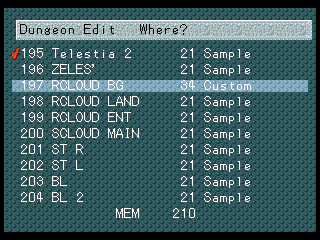
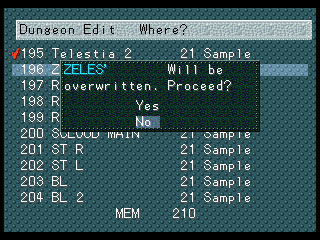
- Move asks "Select Data?", then "Where?", with a ✓ on the dungeon you are moving. Moving onto an empty number just renumbers it. Moving onto an existing dungeon first asks whether it may be overwritten (the cursor starts on No). The dungeon's Monster Appearance areas go with it. Nothing is copied, so MEM doesn't change.
- Copy works the same way, but greys the numbers a copy wouldn't fit into, and stays on "Where?" so you can make several copies. A copy made into an empty number has no random encounters; a copy over an existing dungeon keeps that dungeon's encounters.
- Delete asks once more ("deleted. Proceed?", the cursor on No).
- Delete All asks Yes or No, the cursor on No.
Making a new map#
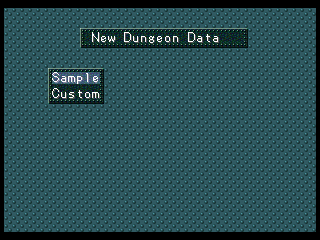
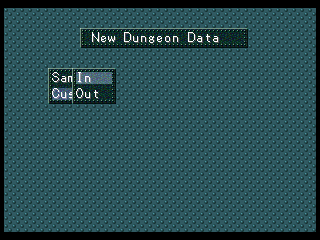
Choose an empty number in Edit's list and New Dungeon Data asks for Sample or Custom.
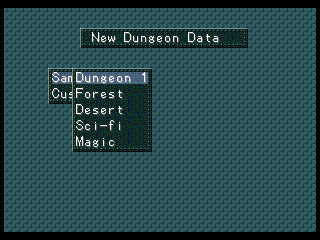
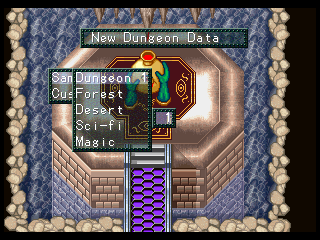
Sample shows the 20 categories, then the maps of the one you choose, each drawn behind the window as you pass it. ↑ and ↓ step one map, → and ← ten, and △ jumps between the first and the last. The preview loads a moment after you stop moving, and × only takes a map once its preview is up.
Custom asks In or Out: indoor walls and floors, or outdoor ground, water and trees. A new Custom map is empty, 65 × 65 cells, and opens with its △ menu so you can pick parts straight away.
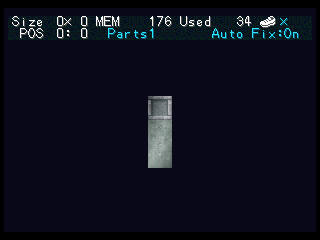
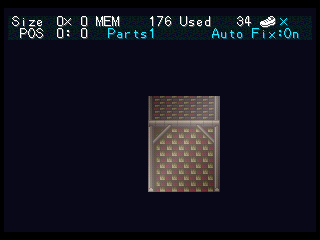
What you may make depends on the free memory:
| Free MEM | What you can make |
|---|---|
| under 21 | nothing: the empty rows are grey and × buzzes |
| 21 to 33 | a Sample map only; Custom says "Not Enough Memory" |
| 34 or more | a Sample or a Custom map |
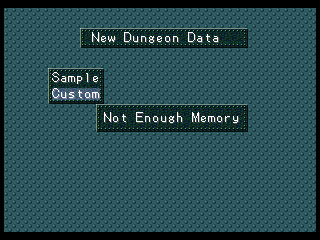
A new map is charged on the screen at once, but nothing is stored until you leave with Update Data: back out with Cancel and the number is empty again.
The editing screen#
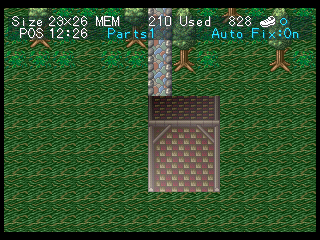 12345678
- 1 Size the box around everything placed, in cells (a Sample map: its own size)
- 2 MEM free memory left in the System Data
- 3 Used what this map costs
- 4 passability ○ if the party could stand on the cell under the cursor, × if not
- 5 POS the cursor's cell, column and row
- 6 mode the tool in hand: Parts1, Start, End, Cut Start, Paste…
- 7 Auto Fix On or Off; L1 switches it
- 8 brush the brush, drawn where it will land
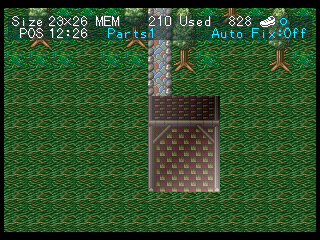
The cursor moves inside a 7 × 5 window in the middle of the screen; pushing at its edge scrolls the map. The ○ / × at the top right is the passability of the cell under the cursor, worked out exactly as the game does it (Passability), so you can walk the map in your head without a Test Play.
| Button | On the editing screen |
|---|---|
| d-pad | move the cursor one cell; the view scrolls when it leaves the middle of the screen |
| □ + d-pad | move five cells |
| × | place the brush; hold it and move to paint a line |
| R1 / R2 held | delete both layers under the cursor; hold and move to rub out a line (Parts1, and Parts2 before its start is set) |
| START | Part Selection: choose the brush |
| L1 / L2 | Auto Fix on or off |
| △ | the menu (not while you are sizing an area) |
| ○ | cancel a step; on the plain map, leave the map |
| SELECT | nothing |
Layers and parts#
A Custom map has two layers and a background:
- Layer A, the floor and the walls: ground, water, wall faces, the room's outline.
- Layer B, the objects on top: furniture, statues, trees, doors, bridges. Each cell of layer B is drawn over layer A, and the empty parts of its tiles let layer A show through.
- The background (BG), shown wherever layer A is empty: a wallpaper, a picture fixed to the screen that doesn't scroll, or a BG Tile, one floor tile repeated under the whole map that scrolls with it.
Layer B's objects come in two kinds. Common objects are shared by every map set: the barrels, chests, signs and the like that events also use as their Object graphics (Graphics). Set objects belong to the map set, and so to In or Out. Some layer-B parts sort with the characters: the top of a tree or a door frame is drawn in front of someone standing behind it, and a roof or a shaft of light is drawn over everything.
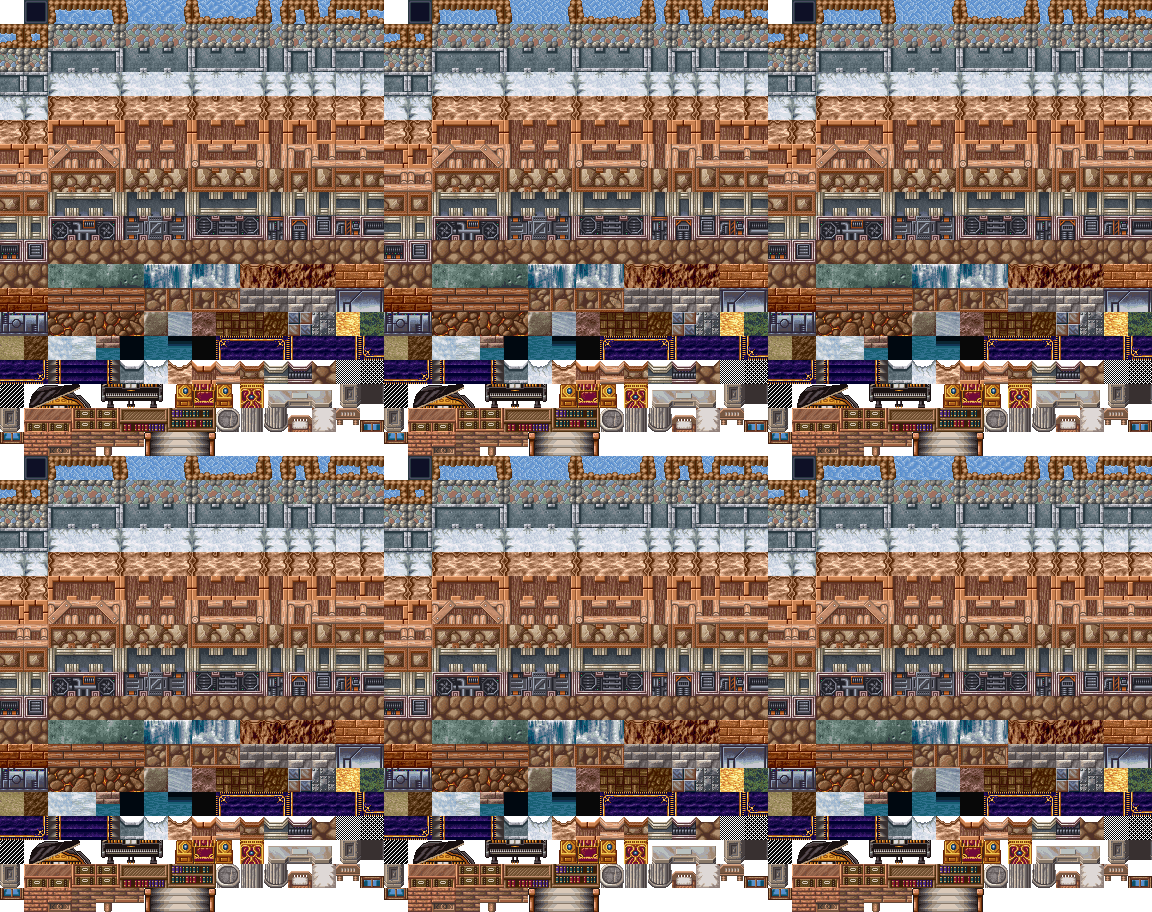
The In set, as the catalogue draws it, with its animated tiles moving:
Choosing parts#
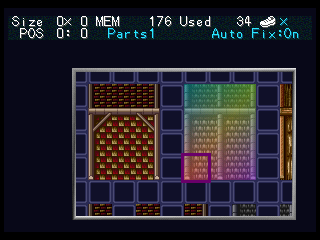
START, or Parts1 or Parts2 in the △ menu, opens Part Selection: the parts of the map's set laid out on a sheet, in groups divided by dark separator cells. Move the cursor to a part and a second box frames the whole group it belongs to: the group is what you will paint with. × takes it as the brush; ○ keeps the old one. □ with the d-pad pages through the sheet four columns or three rows at a time.
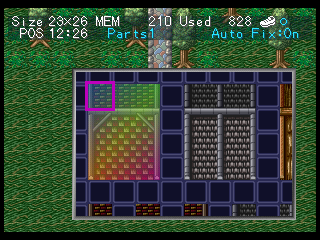
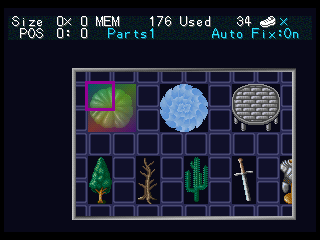
There are three sheets: In Parts1, In Parts2, and one Out sheet that serves both tools.
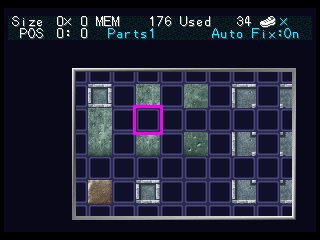
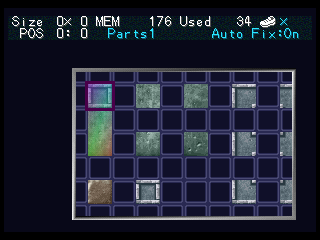
A separator is the eraser. Put the cursor on one of the dark cells between groups: the group box disappears, and × gives you a brush that clears both layers wherever you paint.
The tools#
Parts1: painting#
In Parts1 the brush is the group as it stands on the sheet, a single part or a whole bed, table or tree. × places it with its top-left corner at the cursor; hold × and move to paint a trail. Placing only adds: the empty cells of a brush leave the map as it was, so a tree can be dropped on grass without cutting a hole round it. To clear, use the eraser, or hold R1 (or R2): it deletes both layers in the cell under the cursor, and keeps deleting as you move.
Parts2: stretching#
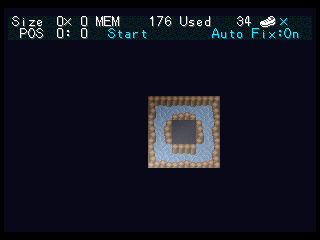
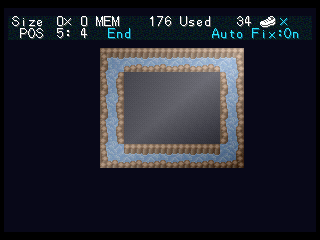
Parts2 fills a rectangle of any size with a group stretched to fit. Its sheet holds groups built to stretch, rooms among them. Each group has corners, edges and a middle, and Parts2 keeps the corners, repeats the edges and fills the middle.
- × sets the area's top-left corner.
- The d-pad sizes it; the cursor is the bottom-right corner. A group that has no middle row can't grow taller than it is, and one with no middle column can't grow wider: the buzzer says so.
- The result is drawn as you size it, already joined by Auto Fix. × places it; ○ goes back to the corner.
So a 3 × 3 room on the sheet becomes a room of any size, walls round a hollow middle.
Cut, Copy and Paste#
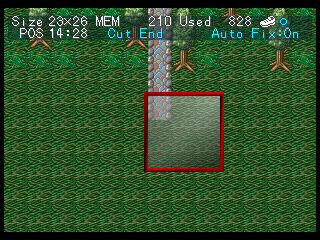
Cut and Copy in the △ menu take a rectangle of the map: × at one corner, the d-pad to size it, × at the other. Cut's frame is red and leaves the area empty; Copy's is white and changes nothing. Then Paste stamps the clipboard at the cursor, as often as you like, until you cut or copy something else. Pasted empty cells are transparent, as in Parts1.
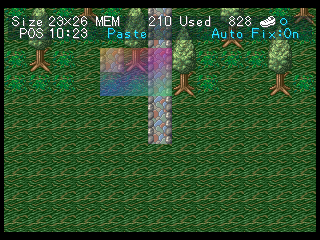
There is one clipboard for In maps and one for Out, kept for the whole Dungeon Edit session: copy a room on one map and paste it on another map of the same kind. Paste is grey while the clipboard for this kind is empty.
Auto Fix#
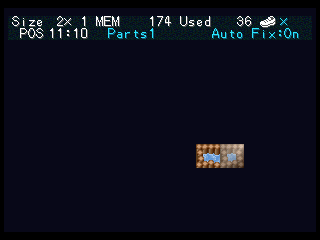
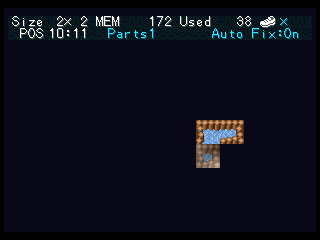
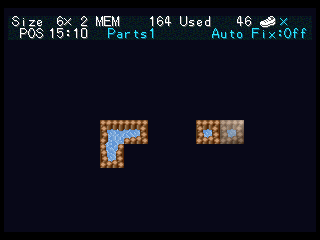
Auto Fix joins walls as you draw them. After every placement, delete or Cut it looks at the cells round the change and swaps each wall part for the one of its family that fits its neighbours: a corner where two walls meet, a T where three do, a cross for four, an end where a wall stops. Paired parts that alternate left and right along a row are kept in step too.
- It only changes layer A, and only into another part of the same family, so it never changes what the map costs.
- The In set has eleven such wall families and a set of pairs; the Out set has two families.
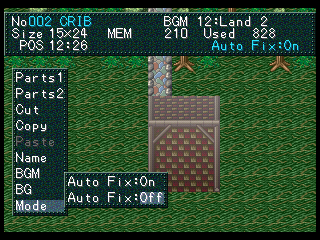
- It is On every time Dungeon Edit starts. L1 or L2 switches it, or Mode in the △ menu. Turn it off to draw an odd joint on purpose.
When memory runs out#
Each placement is checked against the free memory before anything is written. If it doesn't fit, the buzzer sounds and the map stays as it was. Deleting, cutting and the eraser are never refused. See What a map costs.
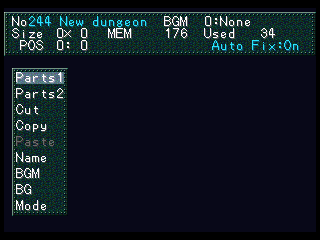
The △ menu#
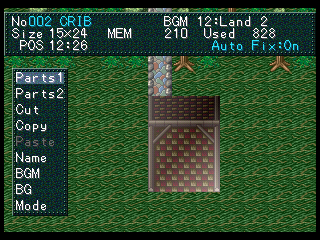
| Item | What it does | Custom | Sample |
|---|---|---|---|
| Parts1 | paint single parts or groups of the sheet as they are | yes | – |
| Parts2 | fill a rectangle of any size with a stretched group | yes | – |
| Cut | lift an area onto the clipboard, leaving it empty | yes | – |
| Copy | copy an area onto the clipboard | yes | – |
| Paste | stamp the clipboard; grey while it is empty | yes | – |
| Name | the dungeon's name, up to 12 characters | yes | yes |
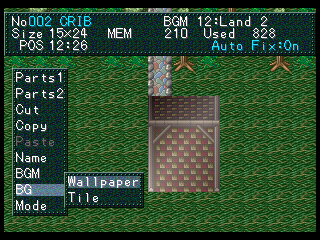
| BGM | the map's music, None or one of the 35 songs | yes | yes |
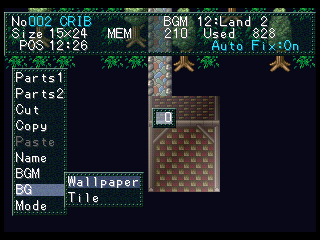
| BG | what shows behind the map: a wallpaper or a BG Tile (a Sample can only take a wallpaper) | yes | yes |
| Mode | Auto Fix on or off | yes | – |
A Sample map's menu has only Name, BGM and BG.
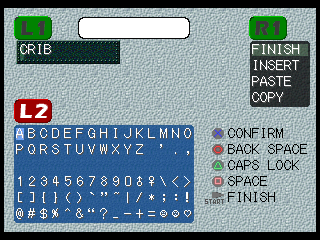
- Name opens the text-entry keyboard (Getting started) on the current name. A new map's "New dungeon" is not kept: the field opens empty.
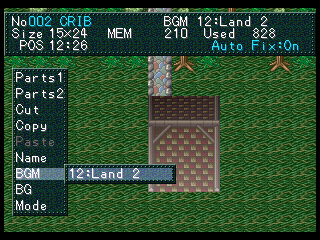
- BGM lists None and the 35 songs, by number and name: ↑ ↓ one, → ← ten. Each one plays after you rest on it, and the first × may only start the music; press again to take it. The songs are in Music and sound.
- BG offers Wallpaper or Tile. A Sample map goes straight to the wallpapers.
Wallpapers#
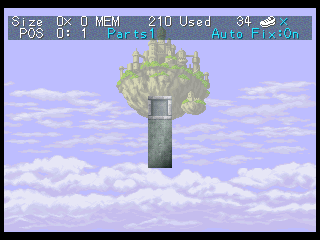
A wallpaper is a full-screen picture behind the map: skies, a sea at sunset, the moon, a galaxy, castles on hills, a floating island, a city. It stays fixed while the map scrolls, so a map drawn as islands or a bridge seems to float over it. There are 26, numbered 1 to 26; 0 means none. △ jumps to the last or the first. As with the Sample maps, × waits until the picture has loaded.
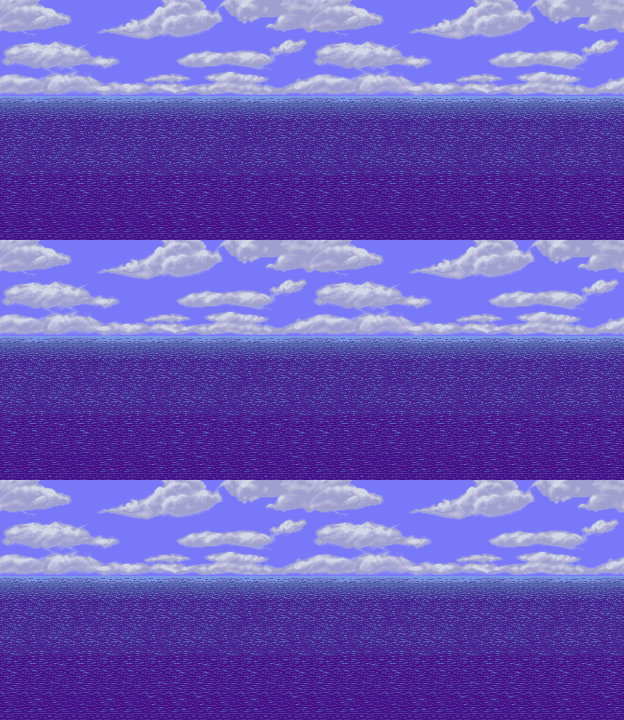
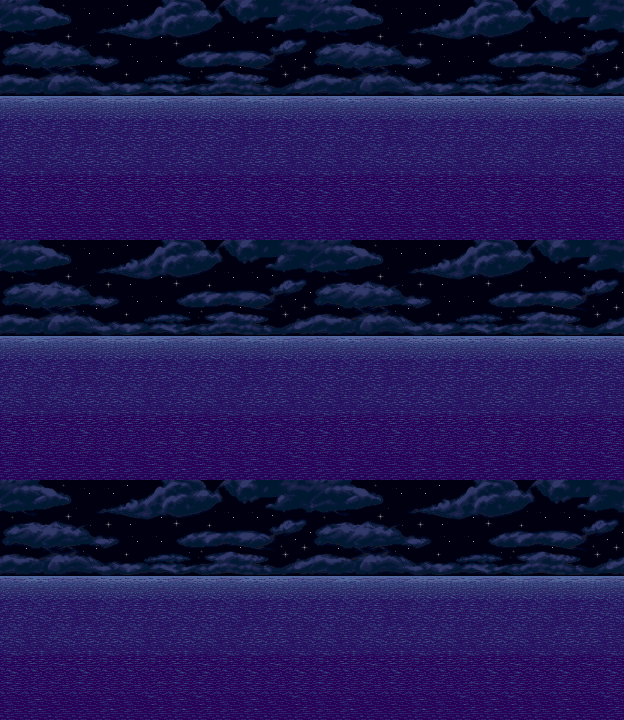
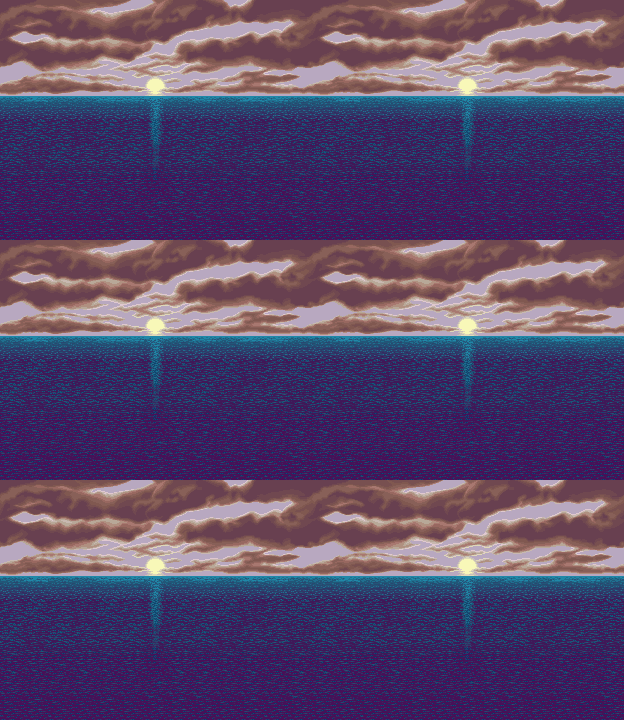
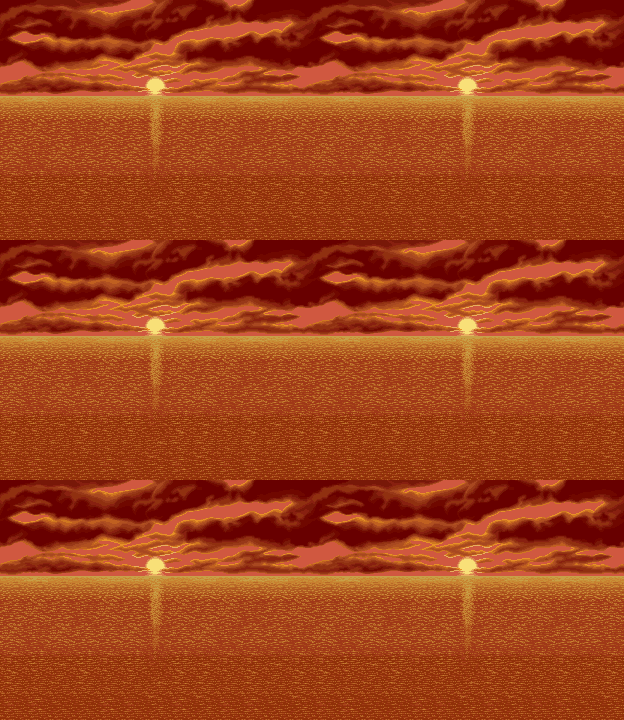
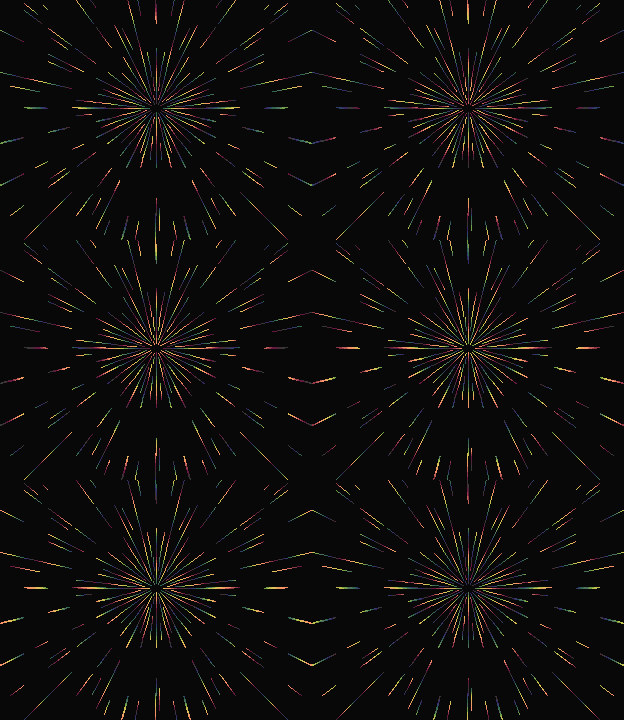
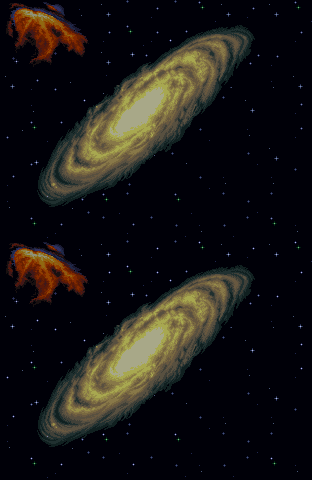
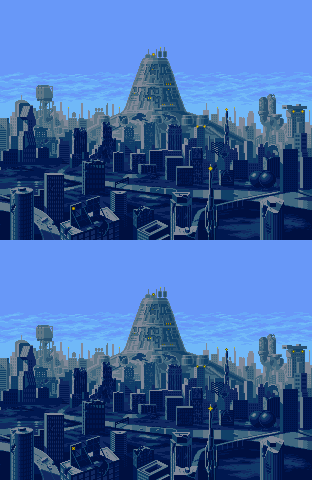
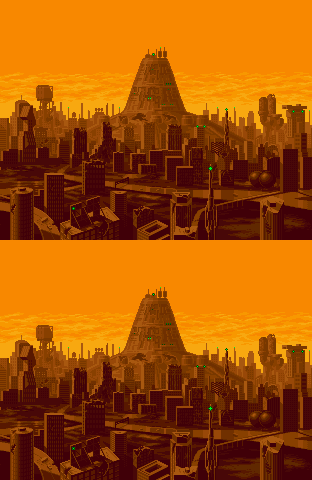
The nine wallpapers that move, by palette cycling: 1 to 5, 17, 18, 25 and 26. All 26 are in Map sets and tiles.
BG Tiles#
A BG Tile is one tile of the set repeated under the whole map. It fills every empty cell, scrolls with the map, and counts for passability: a walkable BG Tile makes every empty cell walkable. The picker offers 23 tiles on an In map and 17 on an Out one, numbered by their place in the list, and shows each on the map at once.
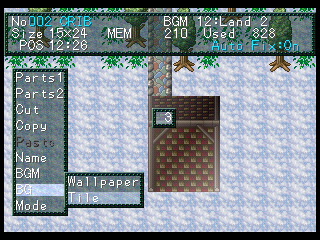
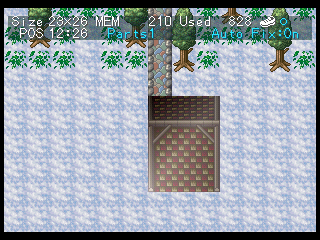
Wallpaper 0 is the only way to remove a BG Tile.
Passability#
The game decides once, when a map loads, which cells the party may stand on. Dungeon Edit's ○ / × uses the same rule:
So an empty cell blocks unless the map has a walkable BG Tile: over a wallpaper, the party walks only where you have put floor. A layer-B part can block (a table on a floor) or open a cell whatever is underneath (a bridge over water). The game doesn't check the cell a Move Location puts the party on, so an event can drop the party onto a wall.
Every part carries its marks, set by the studio and fixed:
| Attribute | Where it counts | In play | Catalogue mark |
|---|---|---|---|
| blocks | layer A, layer B, BG Tile | the party can't step on the cell | red |
| opens | layer B | the cell becomes walkable whatever is under it (a bridge over water) | green |
| front | layer B | drawn over a character standing on its row or above it (tree tops, door frames, statues) | blue frame |
| top | layer B | drawn over everything, characters too (roofs, shafts of light) | magenta frame |
| semi-transparent | layer B | drawn see-through | yellow corner |
| trigger | common objects, as event graphics | the part of an object that starts its event when touched or examined | – |
The catalogue draws each map set with its marks over it, and each Sample map with its blocked cells in red:
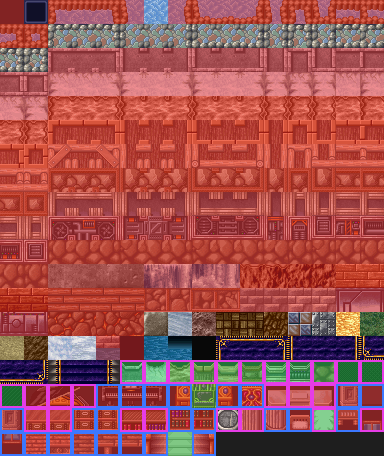
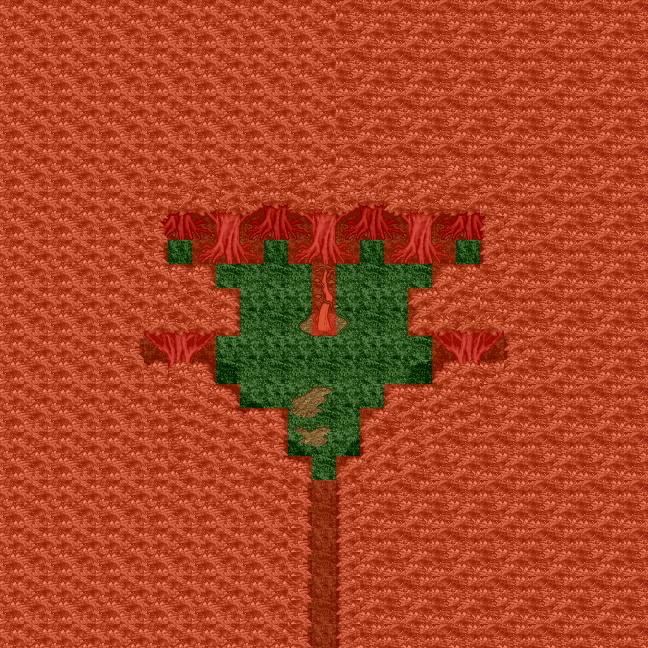
The trigger mark belongs to the common objects when an event uses them as its graphic. A tall object such as a statue or a bookcase triggers its event only from the parts that carry the mark, the lower ones, never from its top half. On a map layer the mark does nothing: a chest painted into layer B is scenery; to make one open, make it an event (Events).
Palette cycling#
Water ripples, lava glows, torches flicker and lights pulse by palette cycling: a run of colours in a tile's palette rotates, and every tile that uses those colours moves at once. It costs nothing: a map set or a wallpaper cycles or it doesn't, and nothing you place changes that. The catalogue counts 68 of the 249 map sets with cycling colours, set 0 and set 1 among them, and 9 of the 26 wallpapers.
In the editor, the cycles start at once and run until you leave Dungeon Edit. Sample maps in the editor don't animate the common objects; in the game they do. Nothing cycles on the world map. How the cycles run inside: How it works.
Leaving and saving#
○ on the map leaves it. If you changed anything, Update Data asks whether to keep it: Yes stores the map in the System Data, Cancel throws the changes away. A map you only looked at, or only copied from, closes without asking. Stored maps are still only in memory: save the System Data to a card (Memory cards and saves).
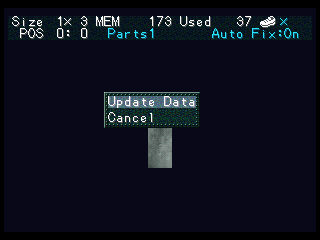
The cursor's position is stored with a Custom map, and the map reopens where you left it.
What a map costs#
A Sample map costs 21 bytes, whatever its size. A Custom map costs 34 bytes empty, plus its two layers. For each layer, only the box that holds its parts counts, from the first part to the last in each direction, and it is stored in whichever of two ways is smaller:
- dense: one byte for every cell of the box;
- sparse: three bytes for every part in it.
So a full room costs about one byte a cell, and a few objects scattered across the map cost three bytes each. An object in a far corner stretches the layer's box: on a dense layer that can cost hundreds of bytes for one part, until the layer is cheaper stored sparse. Used on the editing screen shows the total as you work, and MEM what is left.
| What | Limit |
|---|---|
| dungeons | 990 (numbers 1–990) |
| a Custom map | 65 × 65 cells |
| a Sample map | its own size, 27 × 27 up to 65 × 65; nothing can be placed |
| layers | two (A and B) and a background |
| name | 12 characters |
| wallpapers | 26 |
| BG Tiles | 23 for In maps, 17 for Out maps |
| cost of a Sample map | 21 bytes |
| cost of an empty Custom map | 34 bytes |
| most a Custom map can cost | 34 + 2 × 65 × 65 = 8,484 bytes |
| the whole System Data | 122,368 bytes, shared with every System editor |
MEM is shared by everything in the System Data: the database, all 990 dungeons, the world maps and the Monster Appearance areas. Arc Arath, a full game, leaves 210 bytes free. More numbers in Limits.