Covers Manual 2 pp. 4–26.
Events#
Everything that happens in an RPG Maker game happens in an event: a person who talks, a door that leads somewhere, a chest, a shop, a battle with a boss, the ending. The maps and the database are the stage and the cast; the events are the script. This page covers Event Edit, where events are made, every one of its 27 commands, and what each does in play.
Scenario Data#
A game has two halves. The System Data holds the database, the maps, the world map and the settings (System Data). The Scenario Data holds the events, the Start Point and the scenario's name. In the Edit Data menu they are listed under two headings, and the Scenario Data part has two entries: Event, which opens Event Edit, and Game Info, which opens Set Scenario Data (the scenario's name and password, System Data) Manual 2 pp. 4–6 Manual 2 p. 22.
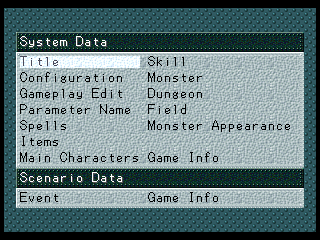
Because the events live apart from the maps, one System can carry several scenarios, each a file of its own on the card. Next Scenario passes the party from one to the next (below, and Memory cards).
Event Edit#
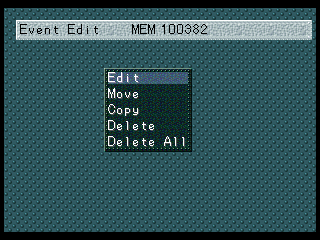
Event opens a menu of five commands with the scenario's free memory beside them:
| Command | What it does |
|---|---|
| Edit | picks a dungeon map and opens it to place and edit events |
| Move | moves every event of one map onto another map |
| Copy | copies every event of one map onto another map |
| Delete | deletes every event of one map |
| Delete All | deletes every event of the scenario, and puts the Start Point back on map 1 |
Move, Copy, Delete and Delete All are grey until some map has events. Each asks for the maps, then confirms with "… will be Overwritten. Proceed?" or "… will be Deleted. Proceed?". Copy can be refused with "Not Enough Memory." or "Can't Copy. Treasure Event is full." (the scenario's 256 Treasure Events are used up).
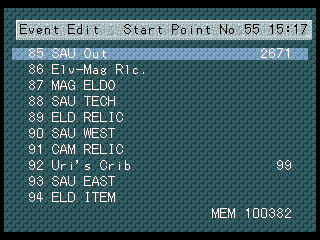
MEM is what's left of the scenario's event memory, 120,276 bytes in all; a blank scenario shows 120,255. The dungeon list shows every map, 1 to 990, with its name and the bytes its events use; hold □ and ↑ ↓ to move 50 maps at a time, ← → for 100. Events are placed only on dungeon maps. The world map has none; its towns and paths are set in Field Edit, and a Move Location can land the party on it.
The map#
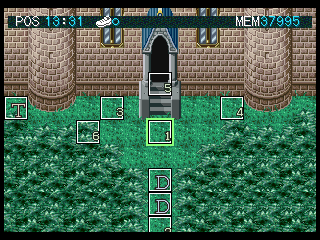
Edit opens the map with a square cursor over it. Events show as markers: an Event by its number, a Treasure Event as T, a Duplicate as D. Events bigger than one tile show their outline.
 1234567
- 1 POS the cursor's tile, x:y
- 2 Shoe ○ if the party can walk on this tile, × if not
- 3 MEM how many bytes this map's events can still grow by
- 4 Cursor × here opens the event, or the event-type menu on an empty tile
- 5 An Event shown by its number
- 6 A Treasure Event T
- 7 Duplicates D, one for each copy
| Button | On the map |
|---|---|
| ↑ ↓ ← → | moves the cursor one tile; with □ held, six tiles |
| × | on an empty tile, the event-type menu; on an Event or Treasure, opens it |
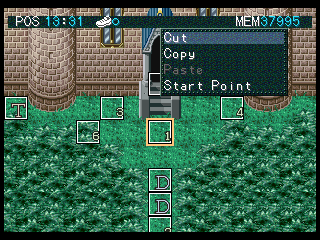
| △ | Cut, Copy, Paste and Start Point |
| L1 R1 | jumps from event to event |
| START | frees the cursor from the tiles, or locks it again |
| ○ | leaves the map; if anything changed, asks Update Data or Cancel |
Cancel throws away everything done on the map since it was opened, the Start Point included. Nothing is stored until Update Data.
The header's shoe shows ○ when the party can walk on the cursor's tile and × when it can't: a quick way to check where a door or a shop counter goes.
Placing events#
× on an empty tile offers four kinds of event:
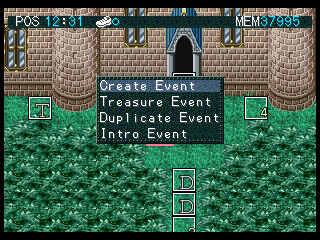
| Kind | What it is | Bytes |
|---|---|---|
| Create Event | an ordinary event: a person, an object, or an invisible trigger, with up to 90 pages | 14 |
| Treasure Event | a chest: a page before it's opened and a page after, and a flag that remembers which | 23 |
| Duplicate Event | a copy of an Event at another place, sharing its pages | 7 |
| Intro Event | one a map, not drawn; it runs whenever the party arrives |
A map holds 120 events of all kinds together, numbered 1 to 120; a deleted event's number goes to the next new one. A scenario holds 256 Treasure Events.
Cut, Copy and Paste move and copy single events about the map. A pasted Event takes the lowest free number.
The Start Point#
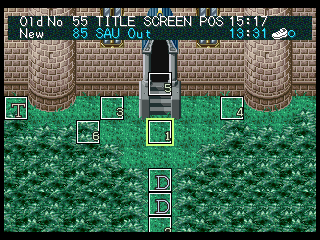
△ → Start Point on any map puts the start there: where a new game begins. The screen shows the old and the new place, and × sets it. It doesn't check the tile, so make sure the party can stand there. Without a Start Point a game starts on dungeon 1, at the top-left corner Manual 2 pp. 4–6.
Events and pages#
An event is a stack of pages. Each page is a complete event in itself: its own graphic, Move Type, start and commands. At any moment one page is in force, chosen by the page conditions, and that page decides how the event looks, moves and starts.
The settings screen#
× on an event opens its settings: one page of it at a time. A new event starts with one page: No Graphic, Don't Move, started by Touch from all sides. An existing event opens on its highest page.
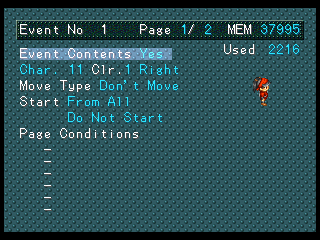 123456789
- 1 Event No the number shown on the map
- 2 Page this page and how many there are; ← → change page
- 3 MEM and Used what the map can still take, and what this event uses
- 4 Event Contents Yes once the page has commands; × opens them
- 5 Graphic the character or object and its colour and facing
- 6 Move Type how the event walks on its own
- 7 Start from which sides, then how the page starts
- 8 Page Conditions up to six, on page 2 and later
- 9 Preview the graphic as it will stand on the map
| Button | On the settings screen |
|---|---|
| ← → | the previous or next page (it wraps round) |
| × | edits the row under the cursor |
| △ | the page menu: Add Page(Back), Add Page(Front), Cut Page, Copy Page, Paste |
| ○ | leaves; if anything changed, Update Data or Cancel |
Add Page(Back) adds a page after the current one, Add Page(Front) before it. A new page starts with the current page's graphic, Move Type and start, and no commands. An event has at most 90 pages, each costing 7 bytes plus its conditions. Copy Page and Paste copy a page.
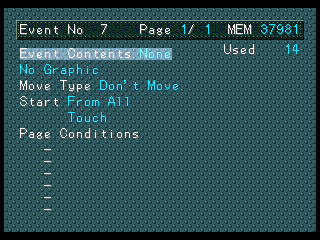
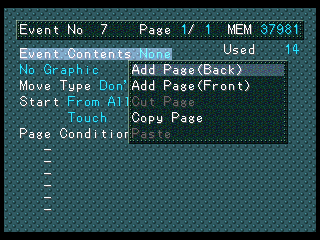
MEM at the top is what the map's events can still grow by; Used is what this event takes. Leaving a new event that was never changed doesn't keep it.
Which page runs#
The game chooses an event's page by looking at the highest page first. A page is taken if it has at least one condition and every one of them holds. If none is, page 1 is in force: it has no conditions and is the fallback Manual 2 pp. 17–19.
The pages are chosen again when the party arrives on the map, whenever any event ends, after a battle and after the field menu. So a command that turns a switch on changes the map as soon as its event is over: a guard steps aside, a door opens, a chest stays open.
Two things follow:
- A higher page with no conditions is never used. Give every page after the first at least one condition.
- A page with no commands never starts, whatever its start. An empty page is how an event is made to look one way and do nothing (a Treasure is the exception: it starts and sets its flag even when empty).
Page conditions#
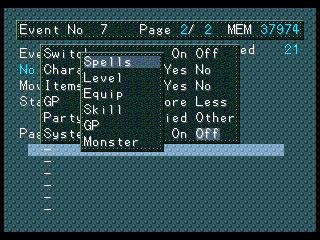
Page 2 and later have Page Conditions: up to six, and every one must hold for the page to be taken. × on an empty condition row offers six kinds; on a set one, Change or Delete Manual 2 p. 19.
| Condition | Choices | Holds when |
|---|---|---|
| Switch | 001–500, On or Off | the switch is in that state |
| Character | a character, Yes or No | the character is in the party, or isn't |
| Item | an item, Yes or No | the item is in the bag or equipped by a member, or neither |
| Gold | 0–999,999, More or Less | the party has that much or more ("nnnnnn or More"), or less ("Less than nnnnnn"); never while the Game System's Gold is off |
| Party | 1–4, Specified or Other | the party has exactly that many members, or any other number |
| System | a Game System flag, On or Off | Magic, Level, an Equip slot (Head, Body, R Hand, L Hand, Access1, Access2), Skill, Gold or Monster is on, or off |
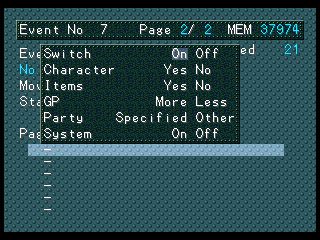
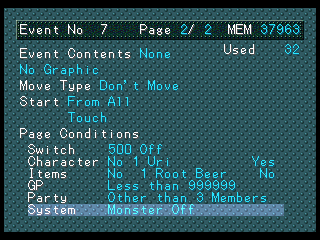
The rows are labelled with the System's terms from Parameter Name (System Data): with the default names they read Magic, Item and Gold; Arc Arath, shown in most of this page's pictures, calls them Spells, Items and GP. Character and Item are grey while the database has none.
Graphics, Move Types and start#
Graphic#
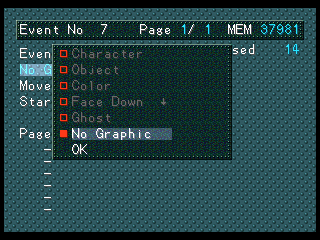
The graphic row offers Character (1–68, then any Anime Maker characters the System imports), Object (1–127), four Color sets, the facing (Face Up, Right, Down, Left, for characters), Ghost (drawn see-through) and No Graphic. In the number pickers ↑ ↓ step by 1 and ← → by 10 Manual 2 p. 17.
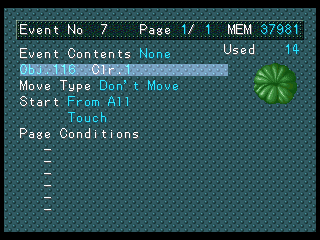
Most objects fill one tile. Objects 87–114 are one tile wide and two high (doors, trees, statues), 115 is two wide and one high, and 116–127 are two by two. A big object needs its other tiles free of events; one that doesn't fit is grey. A big object is the event's tile plus the tiles above and to the right of it, and it starts only from outside. Object 1 is the red treasure chest. Every character and object is in the graphics catalogue.
No Graphic makes an invisible event: an event on a tile, with nothing drawn. It's the tool for triggers on the floor, for a shop counter, and for anything the map itself draws.
Move Type#
How the event walks on its own while the party walks. Every type but Don't Move then asks Slow or Quick Manual 2 p. 17.
| Move Type | What the event does |
|---|---|
| Don't Move | stands still; it still turns to face the party when touched or checked |
| Random | steps in a random direction each time it decides; it has no memory of the last step |
| → ← | walks right and left; at a wall it waits one turn and then turns round |
| ↑ ↓ | walks up and down, the same way |
| Close Up | walks towards the party, on the axis with the larger distance first |
| Away | walks away from the party; it tries the shorter axis first, so it sidesteps, and stands if both ways are blocked |
| Step Only | marks time on the spot |
| Flashing | stays put and flashes |
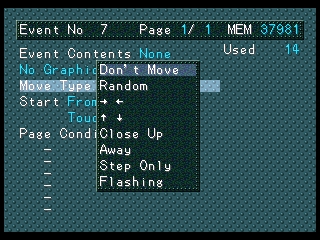
The screen writes the third and fourth types as arrows, → ← and ↑ ↓; the manual calls them Right-Left Arrows and Up-Down Arrows.
- Each moving event decides about every 49 frames (under a second). With many events on a map they take turns, so the more there are, the slower each one decides. Quick halves the time a step takes, not the time between steps.
- Everything stands still while an event runs: a walker stops where it is and goes on afterwards.
- An event with No Graphic doesn't block other events.
The details, frame by frame, are on How it works.
Start#
The start is two choices: the sides the party may start it from, and the method Manual 2 p. 18.
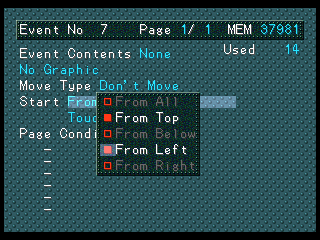
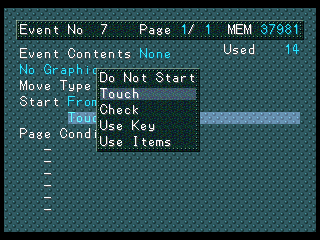
From Top means the party stands above the event (and so faces down to it); at least one side must stay set.
| Start | What starts the page | Notes |
|---|---|---|
| Do Not Start | nothing | the page can still be reached by a Take Over; a Treasure's After page uses it |
| Touch | the party bumps into the event, or ends a step on it | a blocking event (a character with a graphic, or a solid object) turns to face the party; a No Graphic event is stepped on instead and keeps its facing |
| Check | × while facing the event | the party's own tile is checked first, then the tile it faces; the event turns to face the party |
| Use Key | a key (A–H) used from the field menu while facing the event | the key is used up or not by its Break %, as any item |
| Use Item | a chosen item used from the field menu while facing the event | the screen's label is "Use " and the Item term ("Use Items" in Arc Arath) |
Use Key shows the eight keys, A to H; Use Item opens the item list. The settings then read "Use Key F" or "Use Item No" and the item. The player uses the key or item from the field menu while facing the event (Playing a game).
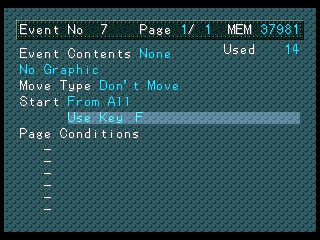
There is no start that runs by itself. An event that must run on arrival is an Intro Event (below); one that must run after another is reached by Take Over.
Treasure, Duplicate and Intro events#
Treasure Events#
A Treasure Event is a chest made easy Manual 2 p. 20. Its screen, titled Treasure Box, has Event Contents, a Before and an After graphic, a Move Type and a start (Touch from all sides when new), with both graphics previewed at the bottom. There are no pages to add and no conditions.
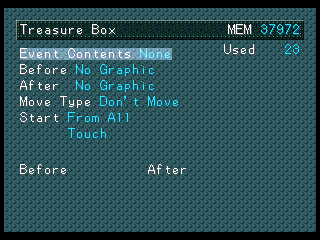
The moment a chest starts, its treasure flag is set, and from then on it shows its After graphic and never starts again. It works even with no contents. Each scenario has 256 treasure flags, one for each Treasure Event; they are cleared by Next Scenario, so each scenario's chests are its own. The After look keeps the Before page's Move Type and speed.
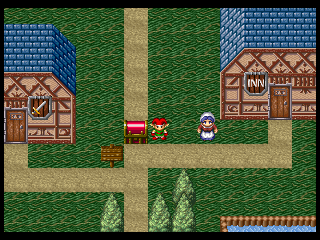
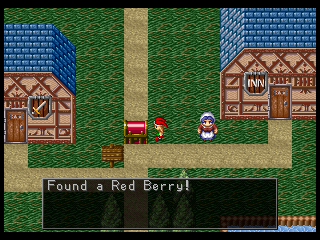
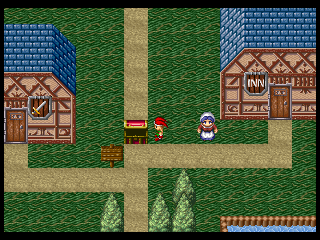
A Treasure isn't only for chests: anything that happens once and then changes look (a lever, a sleeping guard, a plant that's picked) can be one.
Duplicate Events#
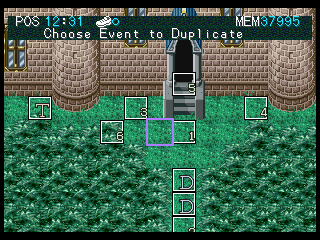
A Duplicate is the same Event in another place Manual 2 p. 20. Choose Duplicate Event, then the Event to copy ("Choose Event to Duplicate"), then each tile for a copy ("Choose Point to Paste"). A Duplicate has no settings of its own: × on one only buzzes.
- It shows the original's page in force, and touching or checking it runs that page.
- Event Direction, Turn, Change Event Graphic, Move Event and Move to Point act on the original and every Duplicate.
- Only an Event can be copied, not a Treasure or another Duplicate.
- Each copy costs 7 bytes against an Event's 14 and more: a row of guards, a wall of fire, or a field of identical flowers costs little.
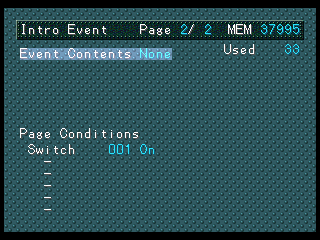
Intro Events#
Every map can have one Intro Event. It isn't drawn and has no graphic, Move Type or start, but it has pages and page conditions like an Event Manual 2 p. 21 Manual 2 p. 26.
It runs each time the party arrives on the map by Move Location, before the screen fades in. A new game, Continue, the restart after Game Over and Next Scenario arrive this way too. It runs only if the page in force has commands, so a page with conditions and no commands switches it off.
Because the screen is still dark, an Intro Event can only set things up:
- Not allowed: Display Message, Move Location, Wait, Event Status, Sound Effect, Shop, Battle, Effect, Ending, Save Point and Next Scenario are grey in its command list.
- Partly allowed: inside their screens, Flash Screen, Swing Screen, the party's Flashing, and the Yes/No, Win/Loss and message choices are grey. Only Probability choices are left.
- Done at once: Change Color is always Quick, Move Party jumps, Gather Party Members is instant.
- Take Over waits: it is remembered and run after the fade-in, on the map. This is how an Intro Event makes someone speak: it sets the scene and takes over a page of an event on the map, which may show messages.
- Display Title works in an Intro Event: it shows the title screen.
Event Contents#
Event Contents on the settings screen opens the page's commands. They run from the top, one after the other Manual 2 pp. 6–16.
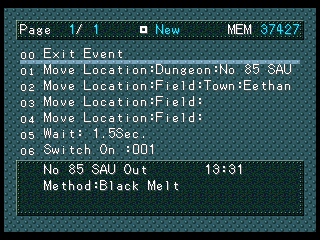 1234567
- 1 Page the page whose commands these are
- 2 New / Change □ switches: New inserts a command at the bar, Change edits the one under it
- 3 MEM bytes left for this map's events
- 4 Line numbers 00–99, then they wrap
- 5 The bar in New mode, where the next command goes
- 6 A command one line each; a message or a branch takes several
- 7 Details the full settings of the command under the cursor
| Button | In Event Contents |
|---|---|
| □ | switches between New (insert) and Change (edit) |
| × | New: opens the command list at the bar. Change: edits the command under the cursor |
| ↑ ↓ | moves the cursor; ← → a screen of 7 lines |
| L1 R1 | pages through a long message in the details panel |
| △ | Cut, Copy, Paste |
| ○ | back to the settings |
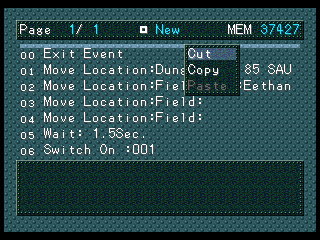
Cut and Copy ask "Cut from Where?" or "Copy from Where?", then "Until Where?", with a red mark on the range. Paste asks "Paste Where?" and can be repeated; what's copied can be pasted into another page or another event.
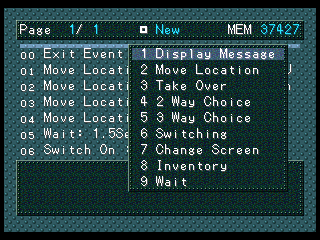
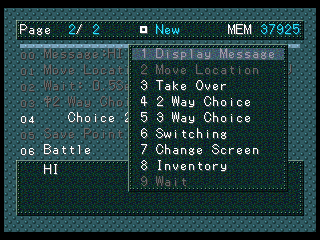
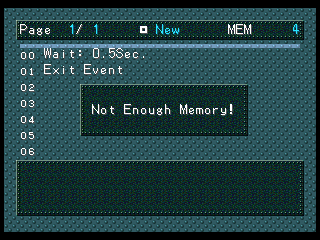
The command list holds 27 commands, nine to a page, ← → to turn. A command is grey when the event can't use it, or when MEM is below the least it costs. Display Message and the choices, whose size depends on the text, say "Not Enough Memory!" instead.
Every command#
| No | Command | Group | What it does | Options | MEM (bytes) | In an Intro Event |
|---|---|---|---|---|---|---|
| 1 | Display Message | Messages and choices | Shows text and waits for a button | Normal (27 characters × up to 36 lines, 3 a page), Main Character and Event balloons (one line of 12), Message 1 (lines scroll up the screen), Message 2 (fades in on a dark band) | 3 + each line's characters + 1 | no |
| 2 | Move Location | Move Location | Fades out and moves the party to another map; ends the event | Dungeon (number and POS, picked on its map) or Field (with a Town); Method Black, White, Black Melt, White Melt | 6 | no |
| 3 | Take Over | Branches and Take Over | Jumps to a page of another event on the map; ends this one | the event, then its page | 3 | recorded, run after the fade-in |
| 4 | 2 Way Choice | Messages and choices | Splits the event into two branches | Yes/No, 2 Messages, Probability (% for Choice 2), Win/Loss (after a Battle) | 1–2, + labels, + 1 per branch marker | Probability only |
| 5 | 3 Way Choice | Messages and choices | Splits the event into three branches | 3 Messages, Probability (% for Choices 2 and 3) | 2 + labels, + 1 per marker | Probability only |
| 6 | Switching | Switches | Turns switches on or off | Switch On, Switch Off; one switch 001–500 or a range "001 to 001" | 3 (5 for a range) | yes |
| 7 | Change Screen | The screen | Moves the camera, flashes, shakes or tints the picture | Shift Screen (SPACE, DIR), Default Screen, Flash Screen, Swing Screen, Change Color (Red, Green, Blue 0–31; Map, Character or Party; Slow or Quick), Default Color | 1–5 | all but Flash and Swing |
| 8 | Inventory | Items and Gold | Gives or takes items and Gold | Add Item, Remove Item, Gold (± up to 999,999) | 2 or 4 | yes |
| 9 | Wait | Waits and timing | Pauses the event | 0.0–25.5 seconds in tenths | 2 | no |
| 10 | Event Status | Moving events | Turns, moves, flashes, re-dresses or switches off an event on this map | Event Direction, Move Event, Move to Point, Flashing Event, Turn Right, Turn Left, Change Event Graphic, Unable to Execute | 1–4 | no |
| 11 | Party Display | The party | Changes how the party is drawn | Disappear, Ghost, Default, Flashing, Main Character (the leader's graphic) | 1–4 | all but Flashing |
| 12 | Party Members | The party | Changes who is in the party | Add, Remove, Change Whole Party, Move to Front | 2–5 | yes |
| 13 | Move Party | The party | Turns or walks the party | Character Direction, Move Party (SPACE 1–65), Move Party to Point, Gather Party Members | 1–3 | yes, at once |
| 14 | Party Status | The party | Changes the whole party's state | Poison, Paralyze, Petrify, Restore Status, HP, MP (± 9,999), Increase EXP | 1–4 | yes |
| 15 | Character Status | The party | Changes one character for good | Learn Magic, Change Skill, Remove Equip, and a change (± 9,999) to each stat | 2–4 | yes |
| 16 | BGM | Music and sound | Changes the music until the next Move Location | Change BGM, BGM Volume (1–10), BGM Tempo (1–21), BGM Reverb (type and depth) | 2–3 | yes |
| 17 | Sound Effect | Music and sound | Plays one of the 78 sound effects | the sound, and Pitch 01–19 | 2–3 | no |
| 18 | Shop | Shops, inns and save points | Opens an inn or a shop | Inn (price), Items (8 items), Skill (8 skills), Trade (8 items) | 3 or 9 | no |
| 19 | Battle | Battles | Fights a fixed group of monsters | Select Monster (6 slots), BGM, Battle till End or an end after 1–200 turns | 8 or 9 | no |
| 20 | Game System | Game System | Turns a whole system of the game on or off | Magic, Level, Equip (each of the six slots), Skill, Gold, Monster; On or Off | 2 | yes |
| 21 | Effect | Effects | Plays one of 12 animated pictures | the picture, where it plays, a Sound Effect, Preview | 3–5 | no |
| 22 | Display Title | The ending and Next Scenario | Shows the game's title screen until × or START | none | 1 | yes |
| 23 | Ending | The ending and Next Scenario | Rolls the credits; the game ends there | Ending BGM, Snapshot (up to 20) | 1–2 | no |
| 24 | Prohibit Escape | Battles | Stops the party leaving the dungeon by Escape Dungeon | none | 1 | yes |
| 25 | Save Point | Shops, inns and save points | Opens the save screen | none | 1 | no |
| 26 | Next Scenario | The ending and Next Scenario | Loads another scenario, keeping the party | Scenario Name (18 characters) | 19 | no |
| 27 | Exit Event | Waits and timing | Ends the event at once | none | 1 | yes |
MEM is the bytes a command takes from the map's memory; "In an Intro Event" says which commands an Intro Event can use. The sections below give each group in play.
How an event runs#
- While an event runs, the field waits: the party can't move and other events stand still.
- Each command takes at least one frame. Messages, waits, walks, fades and battles take as long as they take, and the next command waits for them.
- The event ends when its page runs out, at Exit Event, at a branch marker, at Move Location, Take Over, Next Scenario or Ending. Then every event on the map picks its page again, and the party can move three frames later.
The commands in play#
Messages and choices#
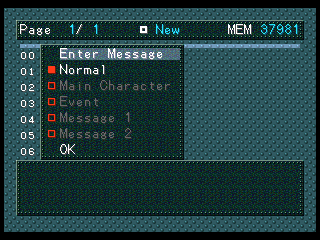
Display Message opens Enter Message, the text keyboard (Getting started), then the type Manual 2 p. 6:
| Type | In play |
|---|---|
| Normal | the window at the foot of the screen, 3 lines a page, typed at the System's message speed; up to 36 lines of 27 characters |
| Main Character | a balloon over the party's leader: one line, 12 characters |
| Event | a balloon over the event itself: one line, 12 characters |
| Message 1 | lines that roll up the middle of the screen with no window, a new one every 96 frames (1.6 seconds) |
| Message 2 | text that fades in on a dark band across the screen, 3 lines a page |
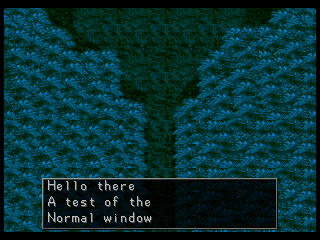
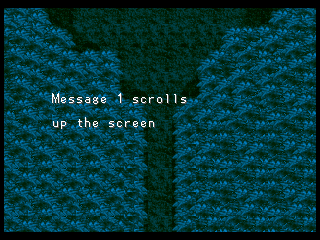
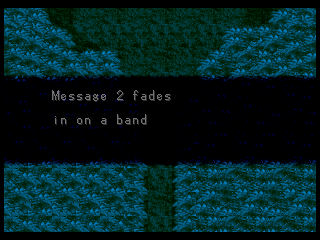
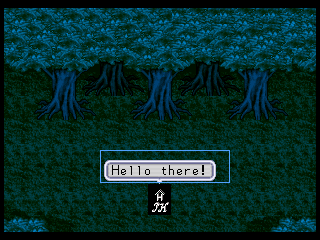
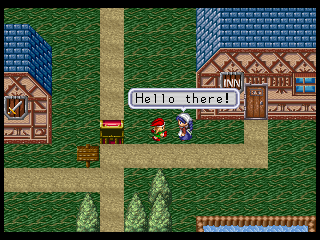
The player turns a page with any button or a press of the d-pad. Holding a direction prints the rest of the page at once, which is handy when testing. A message costs 3 bytes plus each line's characters and one more per line.
2 Way Choice and 3 Way Choice split the page into branches Manual 2 p. 7:
| Type | Choices | In play |
|---|---|---|
| Yes/No | 2 | a small Yes/No window; Yes is Choice 1; ○ can't refuse |
| 2 Messages / 3 Messages | 2 or 3 | the labels you type, listed in the Normal window |
| Probability | 2 or 3 | no question: Choice 2 (and 3) are taken by chance, at the percentages set; Choice 1 gets the rest |
| Win/Loss | 2 | after a Battle: Choice 1 if the party won, Choice 2 if it lost |
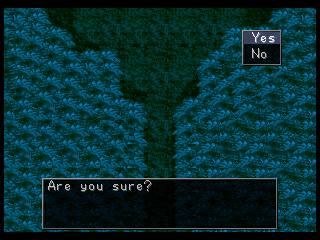
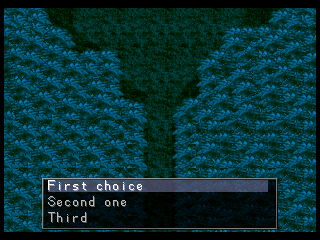
How branches are laid out. A new choice puts its own markers into the page: [Choice 2], and for a 3 Way Choice [Choice 3]. The commands for Choice 1 go between the choice and [Choice 2], the ones for Choice 2 after it. A branch runs until it meets the next marker, and there the event ends. So nothing can come after a choice for all branches to share: each branch finishes on its own, or takes over to a page that carries on.
Branches and Take Over#
Take Over passes the event on to another page: of another event on the same map (Event No, picked on the map, then its page), or of this event (The Event Page). A preview shows the page chosen, marked "Take Over to Here" Manual 2 p. 6.
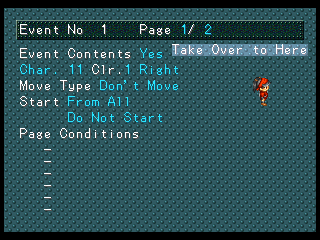
- The page runs without its conditions being checked, and the target event (with its Duplicates) takes on that page's graphic.
- Nothing after a Take Over runs. It's the last command of its branch.
- It fails, and the event simply ends, if the target was made Unable to Execute, or the page is missing or empty.
- In an Intro Event it waits until the fade-in, then runs.
Take Over is the event system's jump: chains of pages, loops, shared endings for several branches, and long scenes that walk from one actor to the next. Making systems from it is the subject of Event techniques.
Switches#
There are 500 switches, 001 to 500, each on or off. They start off in a new game, carry across Next Scenario, and are saved with the game. Switching turns one on or off, or a range ("001 to 010") at once Manual 2 p. 9.
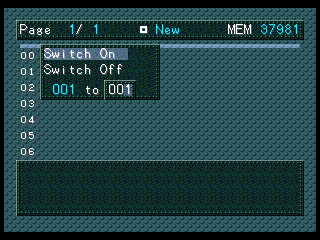
Switches are read by page conditions, and outside Event Edit by the world map's towns and paths (Field Edit) and by skills' conditions (The database). Test Play can turn any switch on or off (Playing a game).
What happens with switch numbers outside 001–500, which the editor can't enter but the game will read, is on Event techniques and Limits.
Items and Gold#
Inventory gives or takes items and Gold: Add Item, Remove Item and Gold (an amount from −999,999 to +999,999) Manual 2 p. 8. On screen the labels use the System's terms ("Add Items", "GP" in Arc Arath).
- A party holds at most 99 of an item. Adding past 99 is lost; removing an item the party doesn't have does nothing.
- Gold stays between 0 and 999,999: taking more than the party has leaves it at 0.
- The Item condition asks only whether the party has an item (or wears it), not how many.
Gold is the only number a page can compare. A Gold condition tests "this much or more" or "less than this much", so Gold can stand for a score, a timer or a counter. Item counts can be used the same way with a little more work. The tricks, from community games, are on Event techniques.
The screen#
Change Screen has six options Manual 2 p. 10:
| Option | What it does |
|---|---|
| Shift Screen | scrolls the view up to 65 tiles in one direction, 2 pixels a frame, without moving the party |
| Default Screen | scrolls the view back to the party |
| Flash Screen | one frame of white; repeat it with a Wait between |
| Swing Screen | shakes the screen for 17 frames |
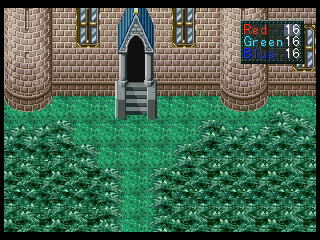
| Change Color | tints the Map Color, Character Color or Party Color, Slow (an 80-frame fade) or Quick |
| Default Color | takes the tint away, Slow or Quick |
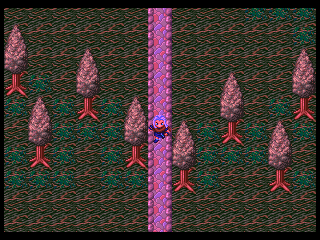
Change Color's Red, Green and Blue sliders run 0–31 over a live picture of the map, so the tint can be judged as it's set. The event waits for a Slow fade to finish.
Move Location#
Move Location sends the party to another place Manual 2 p. 6.
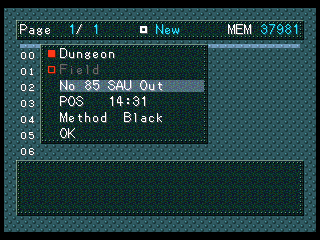 12345
- 1 Dungeon / Field where the party goes
- 2 No the dungeon's number and name
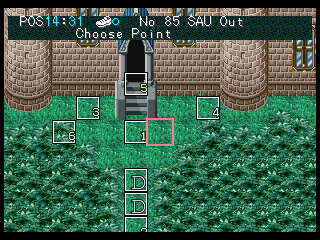
- 3 POS the tile, picked on the destination's own map
- 4 Method the fade: Black, White, Black Melt or White Melt
- 5 OK stores the command
- Dungeon: the map by number, then POS, chosen on that map itself. Any tile is accepted, walls too, so pick it with care.
- Field: the world map, then one of its Towns; the party lands on the town.
- Method, the transition: Black and White fade out to black or white and in again; Black Melt and White Melt melt the picture away. The fade-out takes 80 frames.
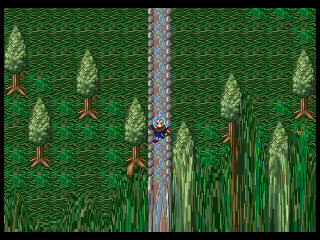
Move Location ends the event: nothing after it runs. Arriving runs the new map's Intro Event, and the map's own music returns, so a BGM set by an event ends here, as does Prohibit Escape.
Moving events#
Event Status acts on the event that runs it (and its Duplicates) Manual 2 p. 11:
| Option | What it does |
|---|---|
| Event Direction | turns it to face a way |
| Move Event | walks it up to 65 tiles in one direction, Slow or Quick; Don't Face keeps its facing, Don't Step stops the walking steps, Flashing makes it blink |
| Move to Point | walks it to a tile, the shorter way round first |
| Flashing Event | makes it blink for a time |
| Turn Right / Turn Left | spins it once round (22 frames) |
| Change Event Graphic | gives it another graphic for now |
| Unable to Execute | ends the event and switches it off |
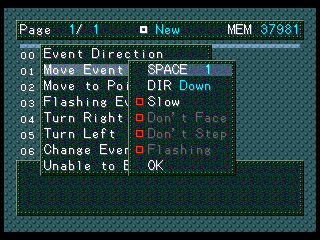
- Moving events pass through walls and other events; only the map's edge stops them. Plan the path.
- Direction and Turn do nothing to an object or a No Graphic event.
- Everything Event Status does lasts only until the party leaves the map. The graphic, the place and Unable to Execute are all reset on the next arrival. For a change that lasts, turn a switch on and give the event a page for it.
The party#
Party Display changes how the party looks: Disappear, Ghost (see-through), Default, Flashing for a time in tenths of a second, and Main Character, which gives the leader another graphic (or none) until changed again Manual 2 p. 11.
Party Members: Add a character to the end (nothing happens if the party already has four), Remove one (not the last), Change Whole Party (four slots at once), or Move to Front to make one the leader Manual 2 p. 12. A character who joins takes off anything in a slot the Game System has turned off.
Move Party: Character Direction turns the party; Move Party walks it up to 65 tiles one way, 12 frames a tile, through anything but the map's edge and without starting events or battles; Move Party to Point walks it to a chosen tile; Gather Party Members brings the followers to the leader Manual 2 p. 12.
Party Status changes the whole party at once: Poison, Paralyze, Petrify, Restore Status, HP and MP (± up to 9,999; HP never falls below 1), and Increase EXP (up to 9,999,999) Manual 2 p. 13. EXP given by an event doesn't raise a level until the next battle is won (How battles work).
Character Status changes one character, for good: Learn Magic, Change Skill, Remove Equip (everything worn goes to the bag), and a change of up to ± 9,999 to each stat, held between 0 (1 for STA) and 9,999 Manual 2 p. 13. Changing STA sets the character's maximum HP to the new STA, and INT the maximum MP; HP and MP themselves are only cut down to fit. Change M DEF needs M DEF on in Gameplay Edit (System Data). The rows use the System's terms: Arc Arath's read Change ATT, Change Max HP and so on.
Music and sound#
BGM Manual 2 p. 14:
| Option | What it does |
|---|---|
| Change BGM | plays one of the 35 songs, or 0 to stop the music, until the next Move Location |
| BGM Volume | 1–10 |
| BGM Tempo | 1–21; 11 is the song's own speed |
| BGM Reverb | ROOM, STUDIO A, STUDIO B, STUDIO C, PIPE, HALL or None, with a depth of 1–6; its Default row is HALL at depth 2 |
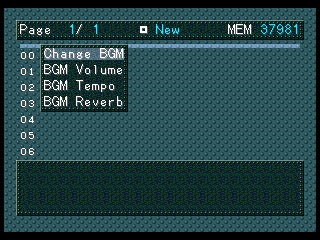
Sound Effect plays one of the 78 sound effects, at a Pitch from 01 to 19, 11 being the sound as recorded Manual 2 p. 14. Every song and sound is on Music and sound with a player.
Effects#
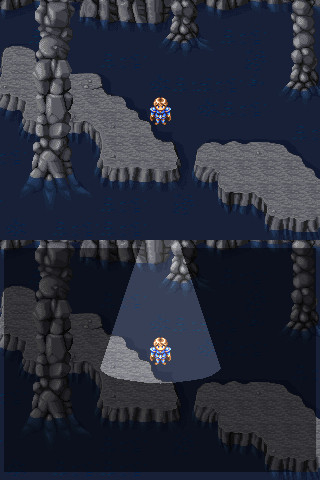
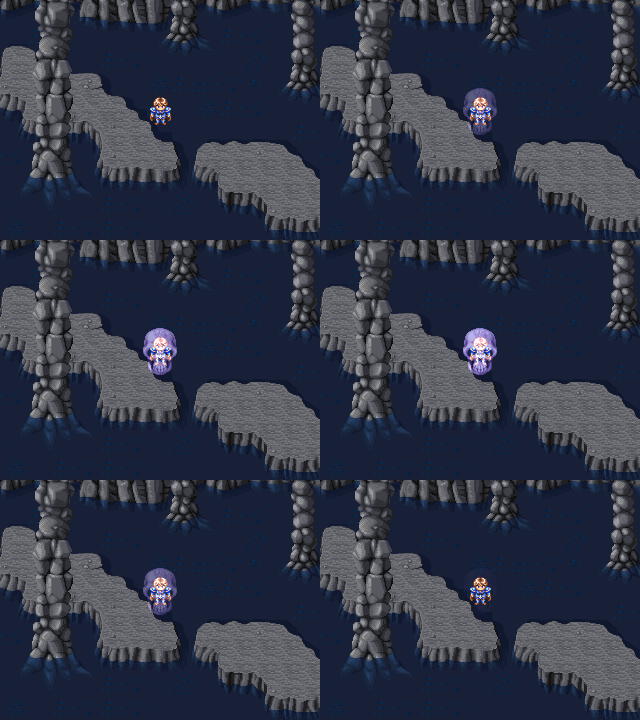
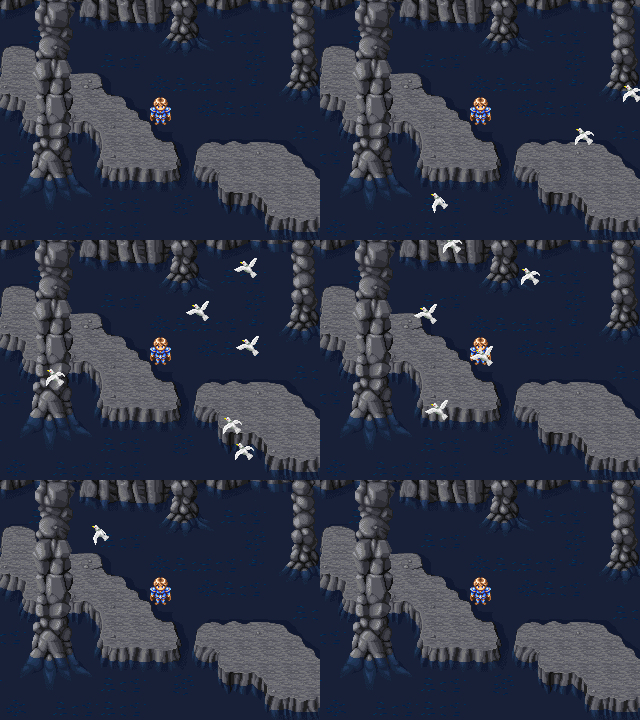
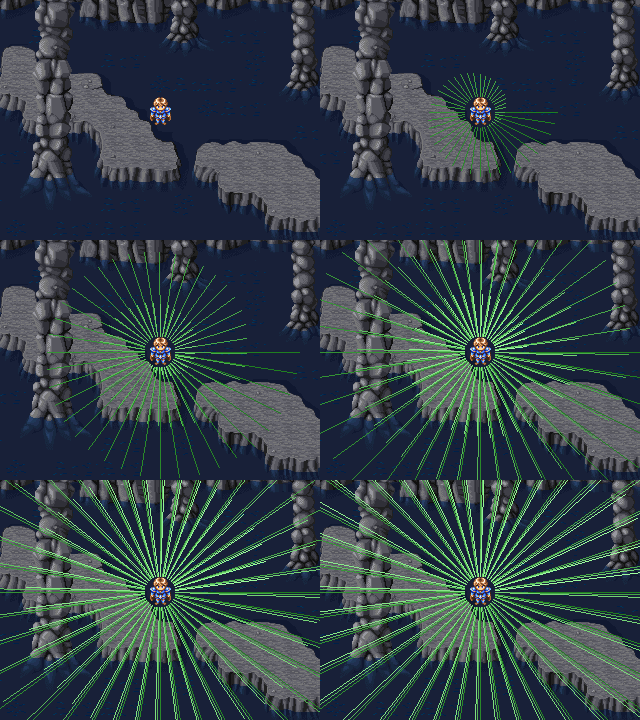
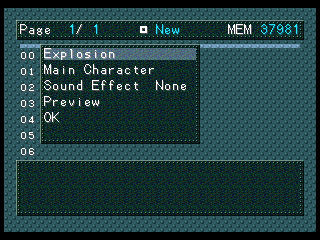
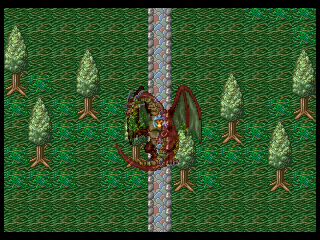
Effect plays one of 12 animated pictures over the map, with a sound effect if you like: Explosion, Multi Explosions, Big Explosion, Light, Light Ball, Spotlight, Skeleton, Bird, Warp, Lightning, Gas and Dragon Manual 2 p. 16. Preview plays it in the editor. The event waits until it's over.
Where it plays: Main Character, Event Point, Random, the edges (Screen Top, Down, Left, Right), or a random place along one edge. Light Ball flies From one place To another; Bird and Gas have no place to set.
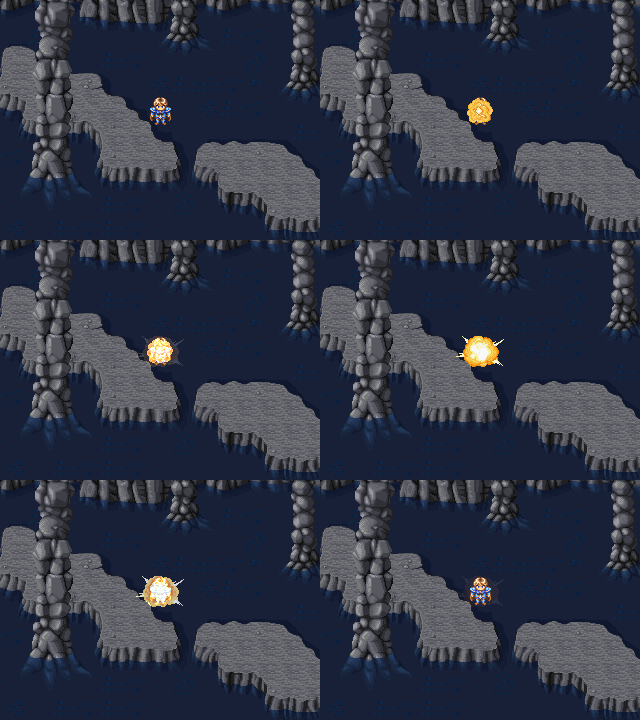
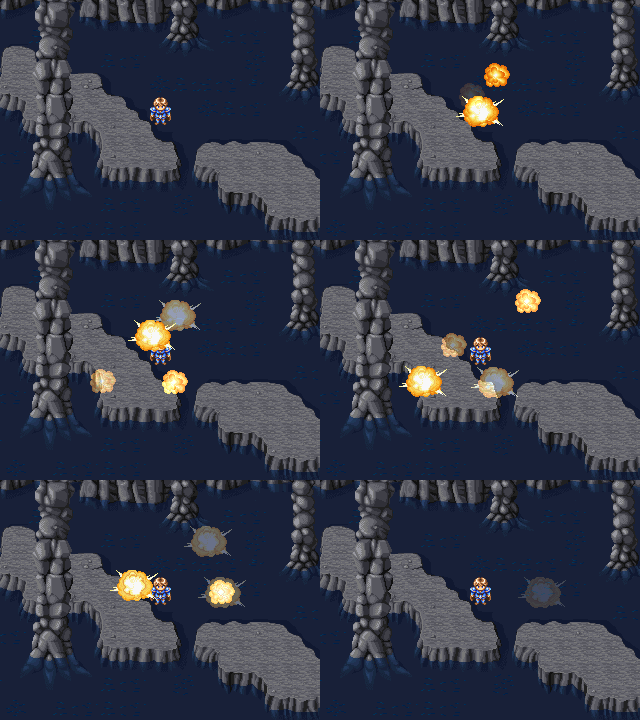
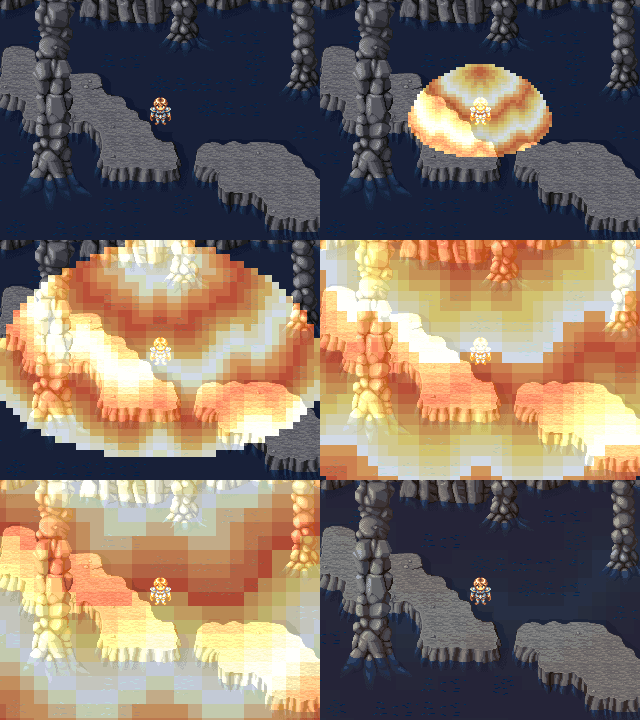
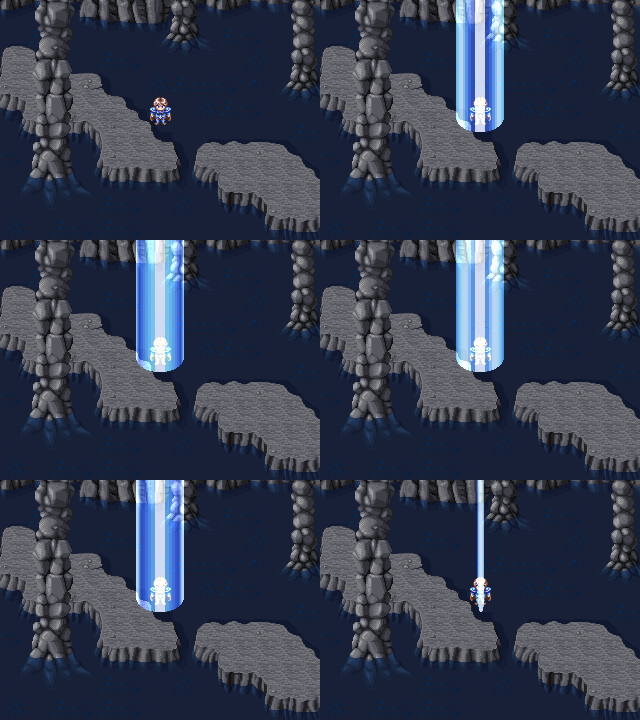
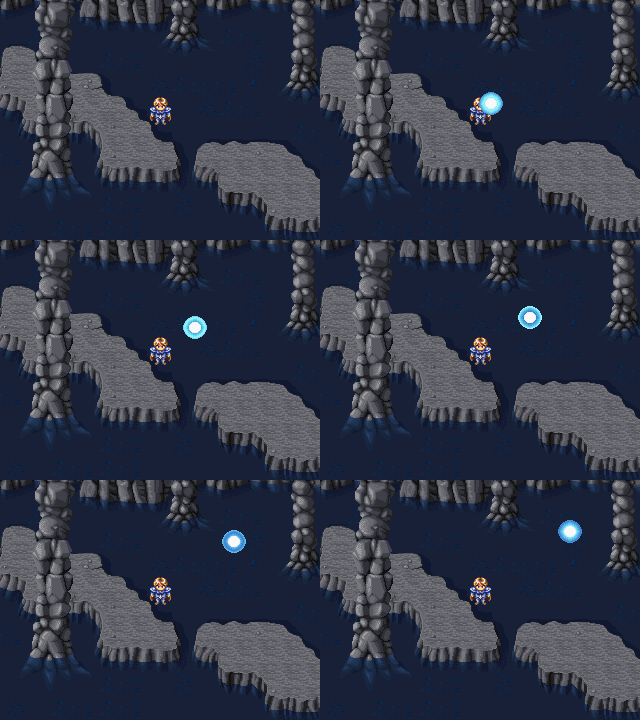
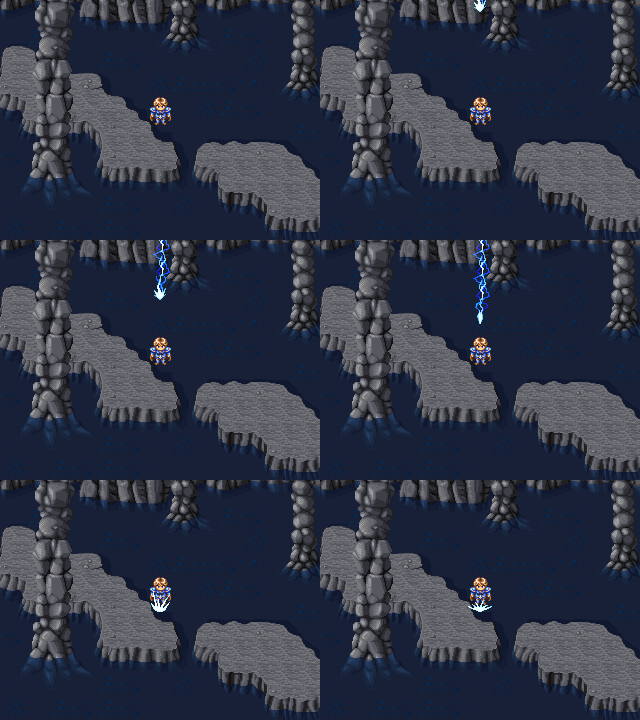
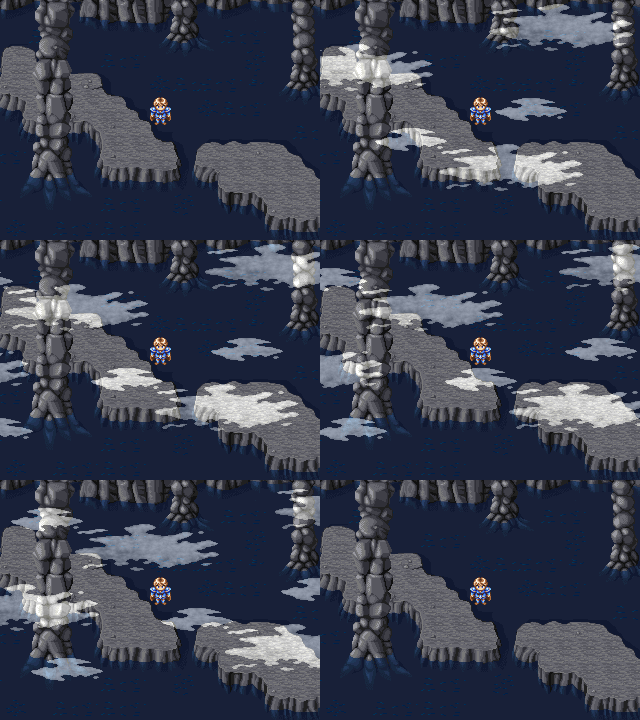
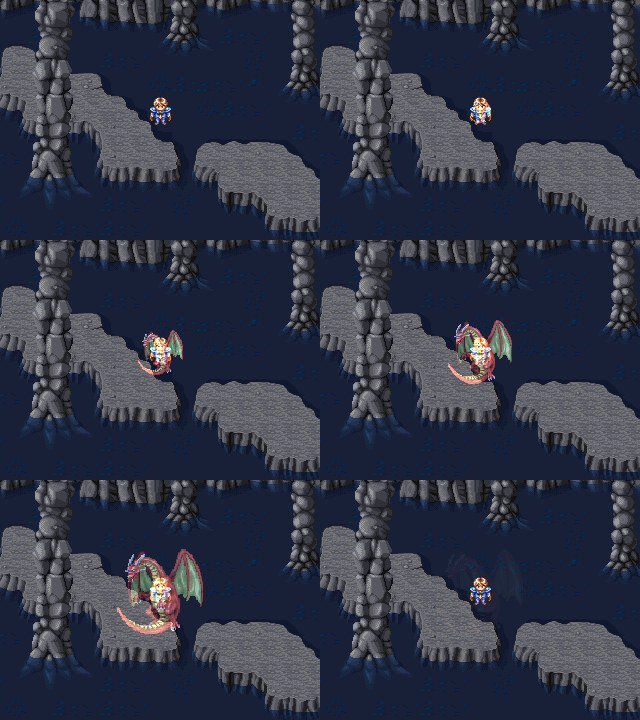
The twelve Effects.
Shops, inns and save points#
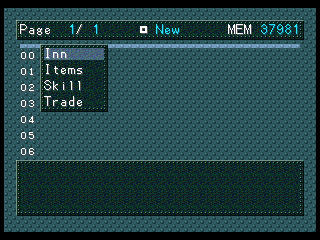
Shop has four kinds Manual 2 p. 15:
| Kind | What it does |
|---|---|
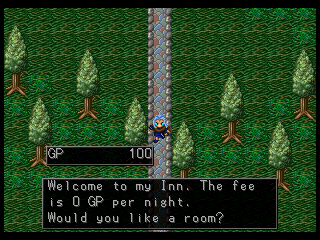
| Inn | asks the fee (0–9,999) with the party's Gold shown; Yes restores all HP and MP, even to the fallen, but not statuses |
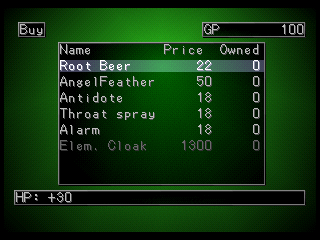
| Items | an item shop of up to 8 items: Buy, and Sell at half price |
| Skill | the Skills Selection Shop: up to 8 skills, free to anyone who meets each skill's conditions |
| Trade | up to 8 items, paid for in other items |
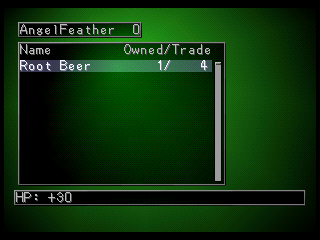
- The Inn and the item shop need Gold: with the Game System's Gold off they're skipped. The Skill shop needs the Game System's Skill on. The Trade Shop works always.
- Selling: equipped items and items marked as not for sale can't be sold. A party can hold 99 of an item.
- Trade: the player offers items; they're worth half their price, and the shop gives as many of the chosen item as that pays for in full. What's left over is lost.
- The shop is only the trading screen: the shop keeper's welcome and farewell are messages around it.
Every screen of the shops is on Playing a game.
Save Point fades out and opens the save screen, where the player saves the game to a card. It needs no settings (Memory cards).
Battles#
Battle fights a fixed group Manual 2 p. 15:
- Select Monster: up to 6 monsters, in the battle's own line-up.
- BGM: BGM Change to pick a song, or BGM Default to keep the map's music. A new Battle command plays no music (0:None) until one is chosen.
- Battle till End, or End nnn Turn to stop after 1–200 rounds.
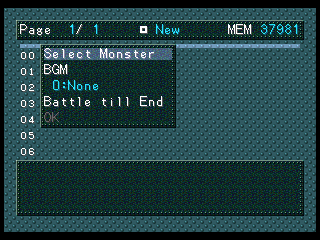
An event battle can't be fled ("Unable to Flee!"), has no First Attack or Ambush, and its monsters can't be killed outright or turned to stone. Their HP shows as "? / ?" (How battles work).
A lost battle is Game Over, unless the next command is a 2 Way Choice: Win/Loss. Then Choice 2 runs on a defeat, and Choice 1 on a win or when the turn limit is reached. That's how to make a battle the party is meant to lose.
Prohibit Escape stops the party using Escape Dungeon until it leaves the dungeon. The battle commands are on How battles work.
Game System#
Game System turns a whole part of the game on or off, for good, until another Game System command: Magic, Level, Equip (each of six slots: Head, Body, R Hand, L Hand, Access1, Access2), Skill, Gold and Monster Manual 2 p. 16. A new game starts with all of them on.
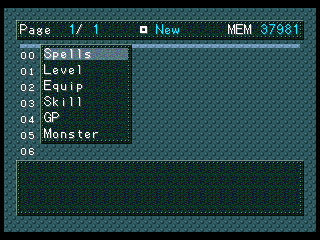
| Off | Effect |
|---|---|
| Magic | the field menu has no Magic page |
| Level | the Status page hides the level, EXP items do nothing, and skills that need a level can't be learned |
| an Equip slot | the slot can't be used; what's in it goes back to the bag |
| Skill | no S ATK page in the menu; the Skill shop is skipped |
| Gold | the menu hides Gold and prices, the Inn and item shop are skipped, and every Gold condition fails |
| Monster | no random battles |
The flags can also be read by the System page condition, and Test Play shows them under Settings.
Waits and timing#
Wait pauses the event from 0.1 to 25.5 seconds, in tenths; 0 does nothing Manual 2 p. 8. Exit Event ends the event at once, which is useful at the end of a branch that shouldn't run on.
The ending and Next Scenario#
Display Title shows the game's title screen (Title Edit's) and waits for × or START; it works in an Intro Event, the usual place for it (System Data).
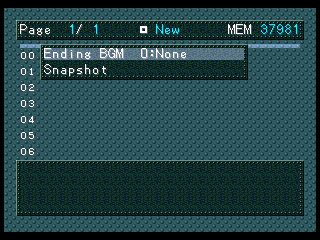
Ending rolls the credits Manual 2 p. 16. Ending BGM sets the music: a new Ending has 0:None, silent credits; Default keeps what's playing. Each Snapshot command takes a picture of the screen as it is at that moment; up to 20 are kept and shown behind the credits. The credits last about four minutes and end on "End", which stays for good: nothing after an Ending runs, and the player must reset.
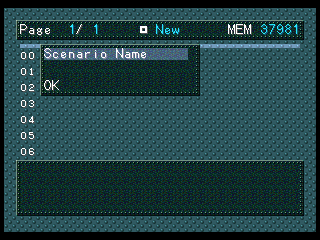
Next Scenario loads the scenario named, exactly as its Set Scenario Data names it (18 characters) Manual 2 p. 22. The game looks for it on the cards, asks for a card if it can't find it, and starts it at its Start Point. Switches, the party, items and Gold go along; treasure flags start afresh. In Test Play it only shows a message and carries on. The details are on Memory cards.
What events cost#
Every event and command takes bytes from two pools: the map's, at most 40,666 bytes for all its events, and the scenario's, 120,276 bytes for every map's events together. The map view's MEM shows the first and the top menu's MEM the second. One event can't be bigger than a map's share.
| Part | Bytes |
|---|---|
| A new Event (one empty page) | 14 |
| A Treasure Event | 23 |
| A Duplicate Event | 7 |
| Opening a map that has no events yet | 21 |
| Each further page | 7 |
| A Switch condition on a page | 2 |
| A Character or Item condition | 2 |
| A Gold condition | 3 |
| A Party or System condition | 1 |
Commands cost from 1 byte (Exit Event, a branch marker) to 19 (Next Scenario); a message costs 3 bytes plus its text. The full list is in the command table.
| What | Limit | Notes |
|---|---|---|
| Event memory for the whole scenario | 120,276 bytes | the top menu's MEM; 120,255 free on a blank scenario |
| One map's events together | 40,666 bytes | so one event can't be bigger either; the map view's MEM shows what's left |
| Records on one map | 120 | Events, Treasures and Duplicates together; numbered 1–120 on screen |
| Treasure Events in a scenario | 256 | one treasure flag each |
| Intro Events | one a map | |
| Pages in an event | 90 | |
| Conditions on a page | 6 | none on page 1 |
| Switches | 500 | 001–500 |
| Lines in a Normal message | 36 | 27 characters each |
| Lines in a balloon | 1 | 12 characters |
| Move Party, Move Event, Shift Screen | 65 tiles | |
| Wait | 25.5 seconds | |
| Monsters in an event Battle | 6 | |
| Items or skills in a shop | 8 | |
| Ending snapshots | 20 | |
| Scenario Name for Next Scenario | 18 characters | must match exactly |
More numbers, and what happens past them, are on Limits.
Worked examples#
A door that needs a key#
A locked door that opens with a key from elsewhere, and leads to another map. One event on the doorway, three pages.
| Page | Conditions | Graphic and start | Contents |
|---|---|---|---|
| 1 | none | a closed door (a tall object, 87–114); Check | Display Message "It's locked." |
| 2 | Item Yes: the key | the same; Check | Display Message "The key fits."; Inventory: Remove Item, the key; Switching: Switch On 010 |
| 3 | Switch 010 On | No Graphic; Touch | Move Location: the room inside, Black |
- Without the key, page 1 is in force: checking the door says it's locked.
- With the key in the bag, page 2 is the highest page whose conditions hold.
- After it runs, the key is gone but switch 010 is on, so page 3 is in force as soon as the event ends. The door disappears, and stepping into the doorway takes the party through.
The page numbers matter: page 3 is checked first, so once the door is open, nothing else about it counts. To make the door open with Use Key instead, give page 1 the start Use Key and put page 2's contents on it; then checking the door does nothing until the key is used.
A chest#
A Treasure Event, with:
- Before: Object 1, the red chest. After: the graphic the opened chest should show.
- Start: Touch from All (as it comes) or Check.
- Contents: Inventory: Add Item, a Potion; Display Message "Found a Potion!"
That's all: the treasure flag keeps it open for the rest of the scenario, and the Inventory and message run once. For a chest of Gold, use Inventory: Gold instead.
A shop keeper#
A shop keeper stands behind a counter, so the player can't reach the keeper; the trick is to put the event on the counter Manual 2 p. 15.
- A Create Event for the keeper behind the counter: a Character, Don't Move, start Do Not Start. The keeper is scenery.
- A Create Event on the counter tile in front of her: No Graphic, start Check. Its contents: - Display Message "Welcome! What would you like?" - Shop: Items, with up to eight items. - Display Message "Come again."
- Check the counter with the shoe icon: it should show × (the party can't walk on it). The player presses × facing the counter, and the counter's event runs.
For an inn, use Shop: Inn in place of the item shop; its question and Yes/No are built in. For a shop that sells more after the story moves on, give the counter's event a page 2 on that switch with a longer list.